10 Best AI Photo Editing Tools in 2026
Compare 10 popular AI photo editors based on editing capabilities, ease of use, free access, ideal use cases, and current limitations.
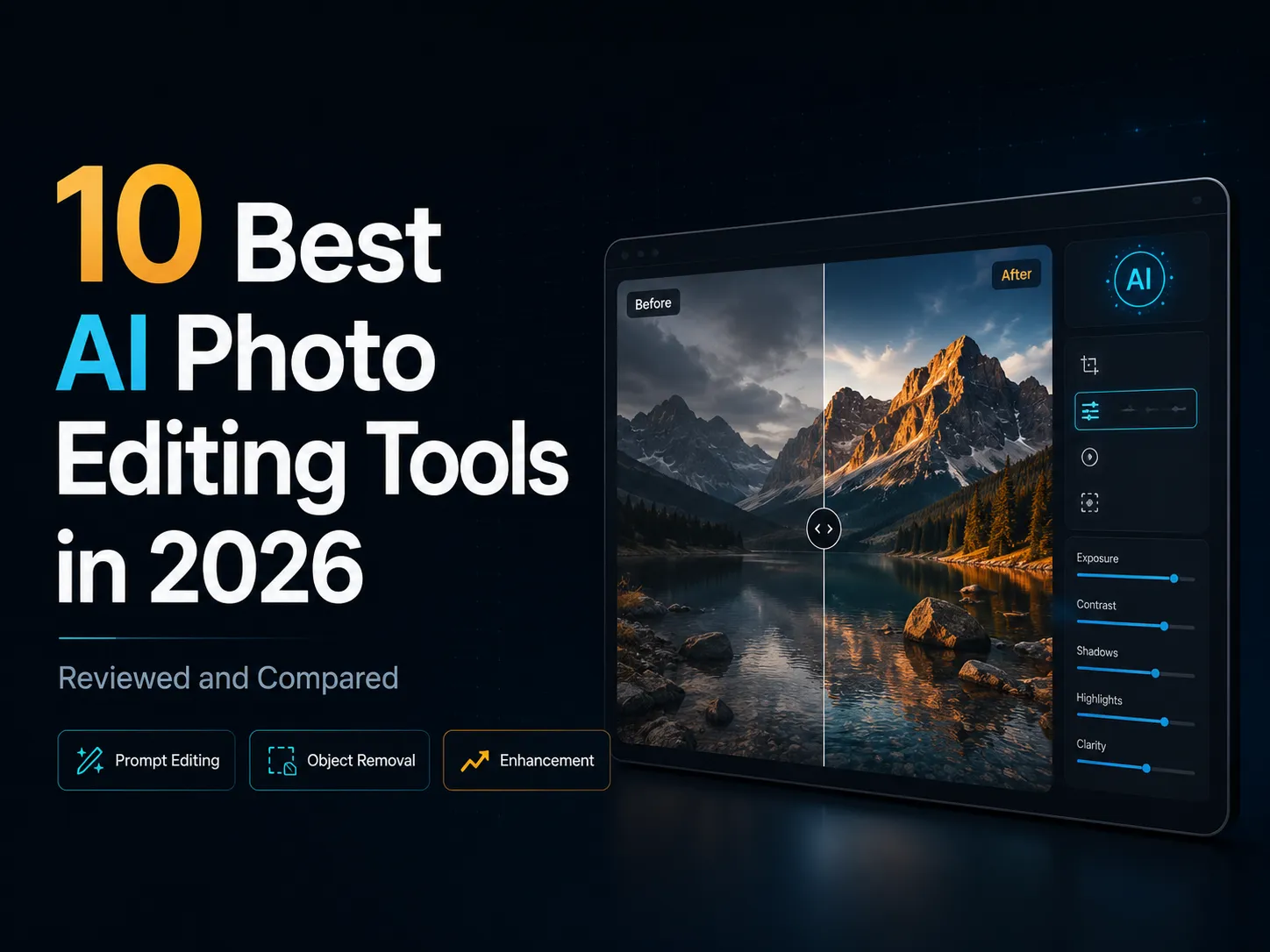
AI photo editors have become good enough that most people no longer need to open a heavy desktop app for every small job. Removing an object, replacing a background, cleaning up a portrait, testing a hair color, or turning a rough product shot into something usable can now happen in a browser.
That does not mean every AI editor feels the same. Adobe Firefly is still the safer pick for professional generative work. Canva makes the most sense when the edited image needs to become a post, ad, slide, or thumbnail. Pixlr gives you more manual control in the browser. Fotor is useful for portraits and everyday cleanup. YuzuTime is included separately as our own newer prompt-first editor.
This guide compares 10 AI photo editors by what they are actually good at, where the free plans start to feel limited, and which type of user should try each one first.
Last updated: July 2026 Author: YuzuTime Editorial Team
Editorial note: This article is written by the YuzuTime team. YuzuTime is our own product, so we call that out whenever it appears. AI tools also change quickly. Before paying for any editor, check the product's current pricing page, free limits, and export rules.
Quick Picks
Adobe Firefly
Professional generative editing, object replacement, image expansion, and Adobe integration.
View review Best FreePixlr
A flexible online editor with AI tools, layers, masks, filters, and browser access.
View review Best for Social MediaCanva
Edit photos and turn them into social posts, ads, presentations, or branded content.
View review Best for PortraitsFotor
Portrait retouching, automatic enhancement, background editing, and everyday photo cleanup.
View review Best Emerging EditorYuzuTime
A new prompt-first AI photo editor with free weekly credits and watermark-free downloads.
View reviewBest AI Photo Editors at a Glance
Use this table as a quick filter before reading the longer reviews. It is not meant to rank every feature, only to show which editor is likely to fit your use case.
Disclosure: YuzuTime is owned by the publisher of this article. We include it because it is relevant to prompt-based AI photo editing, but it is not treated as a neutral third-party recommendation.
| AI Photo Editor | Best for | Prompt Editing | Object Removal | Background Tools | Enhancement | Free Access |
|---|---|---|---|---|---|---|
| Adobe Firefly | Professional generative editing | Yes | Yes | Yes | Yes | Limited |
| Canva | Social media and marketing content | Yes | Yes | Yes | Yes | Limited |
| Pixlr | Browser-based photo editing | Yes | Yes | Yes | Yes | Yes |
| Fotor | Portraits and everyday enhancement | Yes | Yes | Yes | Yes | Limited |
| PhotoEditorAI | Accessing multiple AI models | Yes | Yes | Yes | Yes | Limited |
| DeepAI | Simple prompt-based edits | Yes | Limited | Limited | Limited | Limited |
| PicWish | Product images and background cleanup | Yes | Yes | Yes | Yes | Limited |
| EzCreate | Quick prompt-based transformations | Yes | Yes | Yes | Yes | Limited |
| NoteGPT | No-sign-up AI editing | Yes | Yes | Yes | Yes | Limited |
| Avocado AI | Multi-model creative production | Yes | Yes | Yes | Yes | Paid plans |
| YuzuTime* | Simple prompt-first photo editing | Yes | Prompt-based | Prompt-based | Prompt-based | Yes |
*YuzuTime is our own product. Its currently available tools include the AI Photo Editor, AI Hair Color Changer, and AI Hair Style Changer. Additional dedicated image tools are still on the product roadmap.
How We Evaluated These AI Photo Editors
This comparison is based on public product information, visible editing flows, free-access details where they are available, and how each tool maps to common photo-editing jobs. We avoided numeric scores because they would be misleading here. The same editor can look excellent on one portrait and weak on the next product image.
What we checked
We looked at five practical questions:
| Category | What we looked for |
|---|---|
| Editing capability | Whether the editor supports common tasks such as prompt edits, object removal, background work, enhancement, expansion, or portrait cleanup. |
| Workflow clarity | How quickly a user can move from upload to a useful edit without learning a complex interface. |
| Control and refinement | Whether the tool provides layers, masks, model choices, regeneration options, or other ways to correct a first result. |
| Free access and limits | Whether casual users can try the product before paying, and whether important exports or advanced models are locked behind credits or subscriptions. |
| Best-fit use case | The type of user who benefits most from the product, such as marketers, portrait users, product sellers, designers, or prompt-first casual editors. |
Why there are no scores
Scores look tidy, but they are not very honest for AI photo editing. Prompt wording, image quality, model changes, and retry count can all change the result. Instead of giving every product a fake decimal rating, the notes below explain when the tool makes sense and where it may frustrate you.
Disclosure
YuzuTime is our own product. It belongs in this article because the topic is prompt-based AI photo editing, but it is labeled as our product instead of being presented as an outside pick. It is also newer and narrower than Adobe Firefly, Canva, Pixlr, or Fotor.
The Best AI Photo Editing Tools in 2026
1. Adobe Firefly : best overall for generative photo editing
Adobe Firefly is the safest starting point if you care about polished generative edits more than a tiny learning curve. Its AI photo editor includes Prompt to Edit, Generative Remove, Generative Expand, and Generative Upscale. The free plan includes a limited number of monthly generative credits.
Best for: Professional designers, marketers, creative teams, and existing Adobe users.
Not ideal for: Users who only need a fast one-click enhancer or object remover.
Useful details
- Prompt-based image editing
- Generative object removal
- Generative Fill
- Image expansion
- Image upscaling
- Background replacement
- Integration with Adobe creative workflows
Where it works well
Firefly feels strongest when the edit is part of a professional workflow. You can generate, remove, expand, or upscale an image, then keep working inside the Adobe ecosystem if the result needs more design polish.
It is a good fit for product visuals, ads, creative composites, and resizing images for several formats. It is not the quickest tool for a one-off cleanup.
Tradeoffs
The downside is the usual Adobe tradeoff: more power, more interface, and more plan details to understand. If all you need is to erase one object, Firefly can feel heavier than necessary.
Bottom line
Firefly is the pick for people who already think in terms of campaigns, assets, and production files. Use it when quality control and Adobe integration matter. Skip it when you only want a fast browser edit with as few settings as possible.
2. Canva : best for social media and marketing content
Canva is less of a pure photo editor and more of a design workspace that happens to include AI editing. That matters. After editing an image, you can drop it into a post, ad, presentation, thumbnail, flyer, or branded layout without switching tools.
Best for: Marketers, social media managers, bloggers, educators, and small businesses.
Not ideal for: Detailed professional retouching or highly controlled image compositing.
Useful details
- Prompt-based photo editing
- Magic Edit
- Magic Eraser
- Background removal
- Generative image tools
- Social media templates
- Brand assets
- Collaborative design workflows
Where it works well
Canva wins when the final image needs to go somewhere. For social teams, bloggers, teachers, and small businesses, the template library is often more useful than having the most advanced retouching controls.
It also keeps the workflow approachable. Most users can understand the layout tools quickly, even if they have never used a traditional editor.
Tradeoffs
The tradeoff is precision. Canva is not trying to be Photoshop, and detailed local retouching can feel blunt. Some AI features and higher usage limits also sit behind paid plans.
Bottom line
Pick Canva when the edited image is only one step in a bigger publishing job. If you need careful masking, skin work, or layered compositing, use a more focused editor.
3. Pixlr : best free browser-based AI photo editor
Pixlr sits closer to a normal image editor than most browser AI tools. You get AI features like generative fill and background removal, but you also get layers, masks, filters, effects, and manual controls when the first result needs cleanup.
Best for: Students, bloggers, creators, and users who want both AI automation and manual controls.
Not ideal for: Users looking for the simplest possible one-task interface.
Useful details
- Generative Fill
- Generative Expand
- Background removal
- Object removal
- AI upscaling and sharpening
- Layers and masks
- Filters and effects
- Web, mobile, and desktop access
Where it works well
Pixlr is a good middle ground for people who do not want to choose between automation and control. You can remove something with AI, then keep adjusting the image with familiar editor tools.
It also runs in the browser, which is helpful if you work across several devices or do not want to install a desktop editor.
Tradeoffs
The product can feel a little scattered because Pixlr has several editing surfaces and a long tool list. Free usage may also include ads or limits on premium AI features.
Bottom line
Pick Pixlr when you want a flexible online editor rather than a single-purpose AI button. It is probably too much interface if you only want one guided workflow, but it is useful when quick AI edits still need manual follow-up.
4. Fotor : best for portraits and everyday photo enhancement
Fotor is built around common consumer photo jobs: portrait cleanup, background changes, object removal, text removal, watermark cleanup, color replacement, hairstyle changes, clothing changes, image expansion, and general photo improvement. Its portrait tools cover skin smoothing, makeup, wrinkles, blemishes, and facial adjustments.
Best for: Portraits, selfies, profile photos, social media images, and automatic photo enhancement.
Not ideal for: Users who need advanced layers or precise manual compositing.
Useful details
- Automatic photo enhancement
- Portrait retouching
- Background removal
- Object and person removal
- Watermark and text removal
- Image expansion
- Hairstyle and clothing changes
- Web and mobile applications
Where it works well
Fotor is most comfortable with portraits and everyday cleanup. Many edits that would normally require brushes or masks are packaged as direct tools.
That works well for casual users. Instead of learning a full editor, they can pick the tool that matches the problem in front of them.
Tradeoffs
The large number of tools, promotions, and feature categories can make the interface feel crowded. Some AI operations require credits or a paid plan.
Bottom line
Pick Fotor if you care more about portrait polish and simple cleanup than layer-based editing. Check the credit rules before relying on it every day, because some AI operations may require a paid plan.
5. PhotoEditorAI : best for trying multiple AI editing models
PhotoEditorAI is mainly for prompt-driven editing in the browser. Its product pages point to background removal, object erasing, face retouching, style transfer, and several model choices, including PhotoEditorAI variants, SeeDream, and Nano Banana options.
Best for: Users who want to compare different generative image-editing models.
Not ideal for: Users who require a complete traditional editor with advanced layers and manual controls.
Useful details
- Prompt-based editing
- Multiple AI model choices
- Background changes
- Object removal
- Face retouching
- Style transfer
- Image-to-image transformation
- Browser access
Where it works well
The model choice is the reason to try it. If one model fails on a prompt, another may handle the same image better.
It also saves users from installing or running separate AI models themselves.
Tradeoffs
Results may vary significantly between models. Users may need to spend extra credits testing different settings, and the platform provides less manual control than a traditional editor.
Bottom line
Pick PhotoEditorAI if comparing models is part of how you work. It is less appealing if you want one predictable editor with deep manual controls, because model testing can take time and credits.
6. DeepAI : best for simple prompt-based photo editing
DeepAI keeps the photo editor simple. It sits alongside the company's image, video, music, and chat tools, and developers can also access image editing through an API.
Best for: Beginners and users who want to make a fast edit with a short text instruction.
Not ideal for: Detailed manual corrections or professional image-production workflows.
Useful details
- Prompt-based image editing
- Simple browser interface
- AI image generation
- Developer API access
- Additional image, video, chat, and music tools
Where it works well
DeepAI is easy to understand. Upload an image, describe the change, and wait for a result.
It can help for quick experiments, concept images, and occasional edits.
Tradeoffs
Manual editing and refinement options are limited compared with full photo-editing platforms. Output consistency may depend heavily on the source image and prompt.
Bottom line
Use DeepAI for quick tests, simple prompt edits, or API-driven experiments. Use a more specialized editor if the image needs careful subject preservation, masks, or professional retouching.
7. PicWish : best for product photos and background cleanup
PicWish is practical rather than flashy. It focuses on jobs like background removal, image cleanup, resizing, sharpening, cutouts, blurry-photo repair, and batch background processing.
Best for: E-commerce sellers, product images, profile pictures, ID photos, and background cleanup.
Not ideal for: Complex generative compositions or detailed creative design.
Useful details
- Background removal
- Background replacement
- Photo enhancement
- Image sharpening
- Image enlargement
- Batch background processing
- Resizing
- Mobile and desktop applications
Where it works well
PicWish works well when the task is clear: make the background clean, sharpen the product, create a transparent cutout, or prepare a set of marketplace images.
Batch processing is a real advantage for sellers who need to clean up many product photos at once.
Tradeoffs
PicWish is less suited to advanced compositing and broad creative workflows. Users who need layers, graphic design templates, or extensive generative controls may prefer another editor.
Bottom line
Pick PicWish when product-image consistency matters more than creative experimentation. It is not the tool I would start with for complex compositions or broad generative design.
8. EzCreate : best for quick prompt-based transformations
EzCreate collects several common AI image tasks in one place: prompt edits, background removal, object erasing, image cleanup, old-photo restoration, style transfer, hair-color changes, and image extension. It supports JPG, PNG, and WebP uploads.
Best for: Users who want a direct prompt interface with several common transformation presets.
Not ideal for: Users who need advanced manual editing and established team workflows.
Useful details
- Prompt-based photo editing
- Object removal
- Background replacement
- Style transfer
- Old-photo restoration
- Hair-color changes
- Image extension
- Multiple image models
Where it works well
EzCreate makes the available prompt jobs obvious. That helps new users because they do not have to invent every prompt from scratch.
Prompt presets, aspect ratios, and resolution options give it more room than a one-button editor without turning it into a full design app.
Tradeoffs
Users may need to try more than one mode before finding a good result. It also does not have the broader design and collaboration depth of Canva or Adobe.
Bottom line
EzCreate is mainly about fast prompt transformations. Describe the change, generate a few options, and move on.
Pick EzCreate for quick concept edits or guided prompt experiments. Use a fuller editor for layered retouching, batch work, or more controlled production.
9. NoteGPT : best for no-sign-up AI editing
NoteGPT is better known as an AI learning and productivity platform, but it also includes visual generation and image editing tools. Its Nano Banana 2 page presents the tool as both an image generator and photo editor, while the wider product includes writing, research, learning, image, and video utilities.
Best for: Students, occasional users, and people who want quick access to an AI editing model.
Not ideal for: Professional photographers or users who need a dedicated full-featured image workspace.
Useful details
- Prompt-based photo editing
- Image generation
- Nano Banana model access
- Image transformation
- Browser-based workflow
- Additional writing, research, and learning tools
Where it works well
NoteGPT is convenient if you already use the platform and only need to edit or generate images occasionally.
The no-sign-up angle also lowers the barrier for a quick test.
Tradeoffs
Image editing is only one part of a much larger product. The overall workflow is therefore less focused than a dedicated AI photo editor, and professional manual controls are limited.
Bottom line
NoteGPT is about convenience. It makes sense for occasional edits, quick browser tasks, and users who do not want to commit to a dedicated creative suite.
Pick NoteGPT when speed and low friction matter most. Before using it for client work, check export quality, usage caps, and privacy terms.
10. Avocado AI : best for multi-model creative production
Avocado AI is broader than a photo editor. It covers images, video, UGC, music, and voice, with access to many AI models and production tools around them.
Best for: Agencies, performance-ad teams, and creators producing multiple types of AI media.
Not ideal for: Casual users who only need a free, single-purpose photo editor.
Useful details
- AI image editing
- Smart retouching
- Multiple image models
- Image and video generation
- UGC production
- Music and voice tools
- Creative workspace
- API access
Where it works well
Avocado AI makes more sense for people producing several types of media, not just editing one image. Keeping image, video, voice, and campaign tools together can reduce tool switching.
The multi-model setup also gives teams room to test different outputs for different jobs.
Tradeoffs
For casual users, it can be too much. The pricing and product shape are aimed more at frequent creative production than one free background removal.
Bottom line
Pick Avocado AI when you need a creative production workspace, not just a photo editor. If all you need is one cleanup, a simpler tool will be easier.
Also worth trying: YuzuTime
OUR PRODUCT
YuzuTime is our newer AI image editing platform. The workflow is intentionally direct: upload an image, describe the change you want, choose output settings, and generate.
Current public tools include AI Photo Editor, AI Hair Color Changer, and AI Hair Style Changer. YuzuTime offers free weekly credits, optional login rewards, and watermark-free downloads. Dedicated background cleanup, watermark removal, upscaling, and additional motion tools are roadmap items, not standalone tools available today.
Current features
- Prompt-based photo editing
- Portrait and product-image editing
- AI hair-color changes
- AI hairstyle changes
- Multiple output-size options
- Free weekly credits
- Watermark-free result downloads
- Browser-based access
- No sign-up required for the initial editing workflow
YuzuTime notes
YuzuTime works best when you want a short path from prompt to result. It is intentionally narrower than full design platforms. That makes it easier for casual users, but it also means advanced production teams will hit limits sooner.
Use YuzuTime for prompt edits, hairstyle experiments, hair-color previews, and quick creative changes. Use a larger tool if you need layers, template publishing, or a long list of retouching controls.
Advantages
- Simple prompt-first workflow
- No complicated layer or masking system
- Free weekly credits
- Watermark-free downloads
- Focused tools for hairstyle and hair-color changes
- Suitable for users who want to start editing quickly
Current limitations
YuzuTime is newer and currently provides fewer dedicated tools than mature products such as Adobe Firefly, Canva, Pixlr, or Fotor.
It does not currently offer Canva's template library, Pixlr's full layer-based editor, Adobe's professional ecosystem, or Fotor's extensive portrait-retouching suite.
Some tools mentioned on the YuzuTime roadmap, including dedicated upscaling, background cleanup, and watermark removal, should not be described as available until they have been launched.
Best for
YuzuTime makes the most sense for:
- Casual users who prefer text-prompt editing
- Creators making fast visual changes
- E-commerce sellers editing product images
- People trying hairstyles or hair colors
- People who do not want to install complex editing software
Best AI photo editors by use case
Best for Beginners
Canva, Fotor, and YuzuTime
Canva is easy to learn, Fotor handles common cleanup jobs, and YuzuTime keeps the prompt workflow short.
Best for Product Photos
PicWish
PicWish is a sensible pick for background removal, clean cutouts, sharpening, and product batches.
Best for Portraits
Fotor
Fotor has a large set of portrait tools, including retouching, makeup, hairstyle, and clothing edits.
Best for Prompt Editing
Adobe Firefly
Firefly pairs prompt instructions with removal, expansion, upscaling, and Adobe's professional tools.
Best for Social Media
Canva
Canva is strongest when the edited image needs to become a finished social post, ad, or branded asset.
Free vs. paid AI photo editors
Free AI photo editors are usually enough for occasional cleanup, background removal, prompt experiments, and small personal projects.
The catch is usually limits: generations, premium models, export resolution, processing speed, storage, or batch editing.
| Feature | Free AI Photo Editors | Paid AI Photo Editors |
|---|---|---|
| Basic enhancement | Usually available | Available with higher limits |
| Background removal | Often available with limits | More frequent or unlimited use |
| Prompt editing | Limited credits or generations | Higher monthly allowances |
| High-resolution export | Sometimes restricted | More commonly included |
| Watermark-free download | Varies by platform | Usually included |
| Batch processing | Limited or unavailable | More widely available |
| Premium AI models | Restricted | Usually included |
| Team collaboration | Rare | Available on business plans |
| Priority processing | Usually unavailable | Often included |
Use a free tool when you:
- Edit images occasionally
- Want to test a platform before subscribing
- Only need a few simple transformations
- Do not need batch processing
- Can work within generation limits
Pay for a tool when you:
- Edit images every day
- Need predictable commercial output
- Process large numbers of images
- Need high-resolution exports
- Use premium models
- Work with a creative team
- Need priority processing or storage
How to choose an AI photo editor
Start with the job you need done
Do not choose an editor just because it has the longest feature list.
A product photographer may need clean edges, background replacement, batch processing, and consistent product color. A social media manager may care more about templates, resizing, and brand assets.
Someone editing portraits may care most about skin texture, facial identity, hair, and natural lighting.
Check prompt accuracy
A good AI editor changes the thing you asked for without quietly changing the rest of the image.
For example, changing a jacket should not alter the person's face, hairstyle, pose, hands, or background.
Watch subject consistency
This matters most for:
- Portraits
- Product images
- Branded content
- Fashion photography
- Character images
- Multi-image campaigns
An editor that makes an attractive image but changes the subject's identity is risky for commercial work.
Look for manual cleanup tools
Prompt editing is convenient, but you may still need:
- Masks
- Brushes
- Layers
- Undo history
- Crop and resize controls
- Color adjustments
- Regeneration controls
- Before-and-after previews
Pixlr and Adobe's tools are better when you want AI automation plus manual cleanup.
Check free limits
Check:
- Number of free generations
- Whether registration is required
- Maximum input size
- Maximum output resolution
- Watermarks
- Processing priority
- Available models
- Commercial-use restrictions
Check privacy and data handling
Before uploading confidential, commercial, or client images, review the platform's:
- Privacy policy
- Retention period
- Deletion policy
- Training-data policy
- Commercial-use terms
- Content restrictions
How YuzuTime compares with popular alternatives
YuzuTime vs. Canva
Pick Canva when you need
- Social media templates
- Presentations
- Brand kits
- Team collaboration
- Marketing layouts
- Text and graphic design
- Multiple export formats
Pick YuzuTime when you need
- A simple prompt-first editor
- Fewer interface steps
- Watermark-free AI outputs
- Free weekly editing credits
- Hairstyle or hair-color editing
- A focused image-editing workflow
Canva is the better design platform. YuzuTime is more direct when the job is simply to transform an image and you do not need templates or a full design canvas.
YuzuTime vs. Adobe Firefly
Pick Adobe Firefly when you need
- Professional generative editing
- Adobe Creative Cloud integration
- Generative expansion
- Advanced object removal
- Professional design refinement
- A mature creative ecosystem
Pick YuzuTime when you need
- A simpler interface
- A prompt-first workflow
- Fast browser access
- No heavy design software
- Free weekly credits
- Watermark-free outputs
Adobe Firefly is more complete for professional production. YuzuTime is easier to approach when speed and simplicity matter more than the Adobe ecosystem.
YuzuTime vs. Fotor
Pick Fotor when you need
- Extensive portrait retouching
- Makeup and skin tools
- Automatic photo enhancement
- Many one-purpose editing tools
- Mobile editing
- A longer-established editor
Pick YuzuTime when you need
- Natural-language image editing
- A lightweight workflow
- Watermark-free downloads
- Free weekly credits
- Focused hairstyle tools
- A less crowded interface
Fotor currently has more dedicated portrait and cleanup tools. YuzuTime is simpler when you want to describe the change instead of choosing from a large menu of separate editors.
Final verdict
There is no single AI photo editor that fits everyone.
- Pick Adobe Firefly for professional generative editing.
- Pick Canva for social media, marketing, and template-based design.
- Pick Pixlr for free browser editing with manual controls.
- Pick Fotor for portraits, selfies, and automatic cleanup.
- Pick PhotoEditorAI to test multiple AI models.
- Pick DeepAI for simple prompt edits.
- Pick PicWish for product images and background cleanup.
- Pick EzCreate for guided prompt transformations.
- Pick NoteGPT for quick access to AI image tools without a dedicated professional workspace.
- Pick Avocado AI for multi-model image, video, voice, and campaign production.
- Consider YuzuTime for a simple emerging AI photo editor with free weekly credits and watermark-free results.
YuzuTime is not as feature rich as Adobe Firefly, Canva, Pixlr, or Fotor. Its strength is the lower-friction prompt workflow: upload an image, describe the change, and get a result without learning a complex interface.
Ready to edit a photo?
Upload an image, describe the change you want, and generate a watermark-free result with YuzuTime.
Frequently asked questions
What is the best AI photo editor in 2026?
Adobe Firefly is one of the best choices for professional generative editing. Canva is better for social media and marketing content, Pixlr is a strong browser-based editor, and Fotor is particularly useful for portraits.
The best choice depends on your editing task, required level of control, and budget.
Is there a completely free AI photo editor?
Several AI photo editors offer free access, including Pixlr, Adobe Firefly, Fotor, PicWish, DeepAI, NoteGPT, and YuzuTime.
However, free plans may limit generations, premium models, output resolution, processing speed, or batch editing.
Can AI edit a photo from a text prompt?
Yes. Prompt-based AI photo editors allow users to describe changes in natural language.
For example, you can ask an editor to remove a person, replace a background, change clothing, improve lighting, or expand an image.
Which AI photo editor is best for beginners?
Canva and Fotor are beginner-friendly because they provide guided interfaces and automatic tools.
YuzuTime is another simple option for users who prefer describing an edit with a text prompt instead of working with layers, brushes, or masks.
Which AI photo editor is best for product photos?
PicWish is a strong choice for product backgrounds, transparent cutouts, sharpening, and batch processing.
Canva is better when the edited product image must be placed into an advertisement or marketplace design. Adobe Firefly is useful for more creative product scenes.
Can an AI photo editor remove unwanted objects?
Yes. Many AI photo editors can remove people, objects, text, clutter, and other distractions while reconstructing the missing background.
Results are usually more consistent on simple backgrounds than on detailed patterns, faces, hands, reflections, or heavily obstructed areas.
Can AI photo editors replace Photoshop?
AI photo editors can replace Photoshop for common tasks such as background removal, simple object removal, image enhancement, prompt-based transformations, and resizing.
Professional tools are still more suitable for complex compositing, precise masks, print production, advanced color correction, and projects requiring detailed layer control.
Are AI-edited photos safe for commercial use?
Commercial-use rights vary between platforms, plans, models, and source materials.
Before using an output in advertising, client work, products, or merchandise, review the platform's terms of service, licensing rules, privacy policy, and model restrictions.
Do AI photo editors store uploaded images?
Many services temporarily store uploaded images to process the request and provide a downloadable result.
Storage periods, deletion policies, and training-data practices differ, so review the privacy policy before uploading confidential or client-owned images.
What is the best AI photo editor without sign-up?
YuzuTime allows users to begin using its AI Photo Editor without signing up and provides free weekly credits. NoteGPT and some other browser-based editors also promote low-friction or no-sign-up access.
Account requirements and free limits can change, so check each platform before editing.
Related YuzuTime tools
AI Photo Editor
Clean up portraits, refine images, and create polished edits directly in your browser.
AI Hair Color Changer
Preview new hair colors before committing to a salon visit or profile photo update.
AI Hair Style Changer
Try different hairstyles online and compare looks before your next haircut.