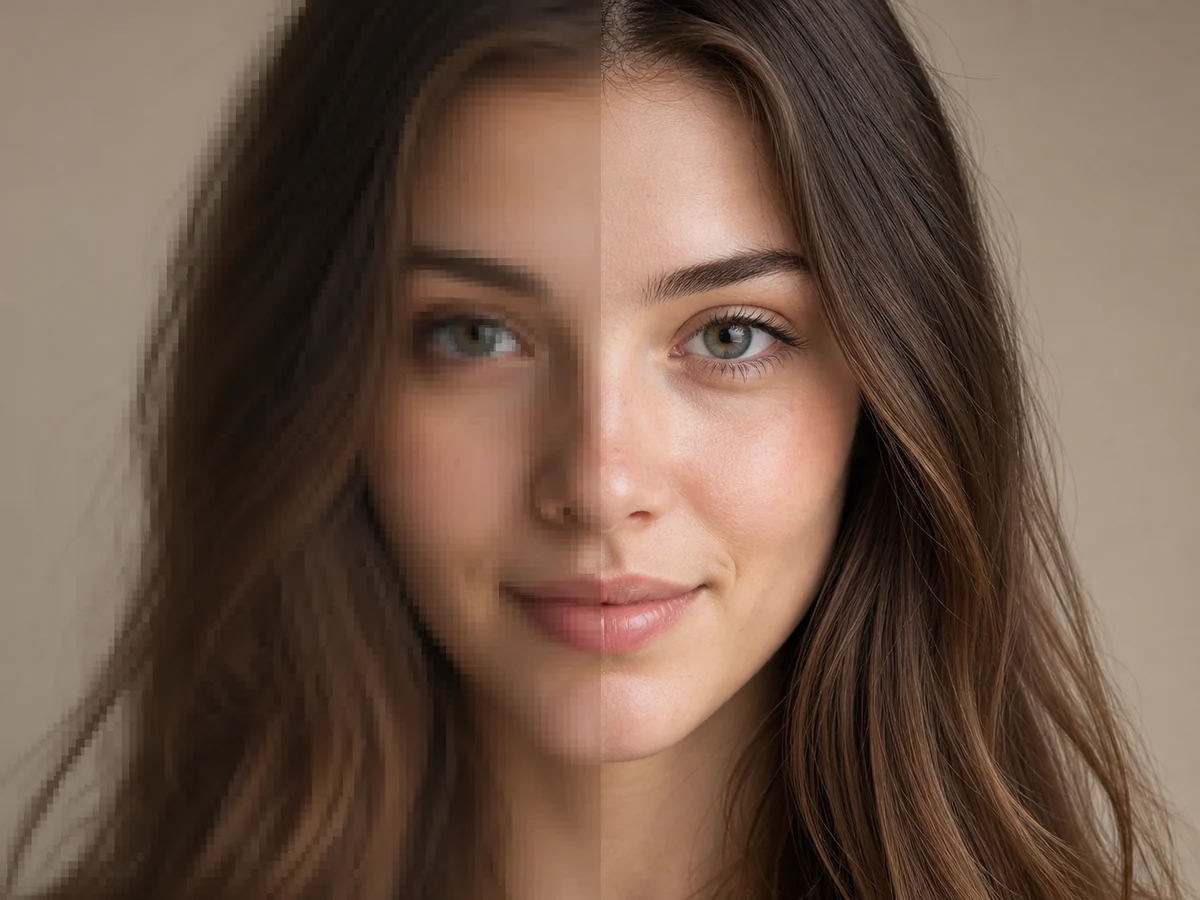
Portrait detail
Aim for clearer eyes, hair, and facial features while keeping skin texture natural. Very small or heavily blurred faces may still need dedicated restoration.
Your high-resolution preview starts here
Upload a JPG, PNG, or WebP image, then choose the Upscale Level.
Preview
2K output preview
Recent history
MoreNo recent edits yet.
AI detail reconstruction
Upscale photos, product shots, artwork, and everyday pictures to 2K or 4K quality while AI rebuilds cleaner edges and more natural-looking texture.
Compare faces, lettering, logos, and fine textures at 100% zoom before publishing or printing.
Soft edges
Refined feather detail
2K / 4K
Output targets
AI detail
Edge reconstruction
One click
Ready to download
What to inspect
Compare the original and upscaled image at the same zoom. Look for cleaner edges, reduced pixelation, useful texture, and a natural appearance—not only a larger file.
Aim for clearer eyes, hair, and facial features while keeping skin texture natural. Very small or heavily blurred faces may still need dedicated restoration.
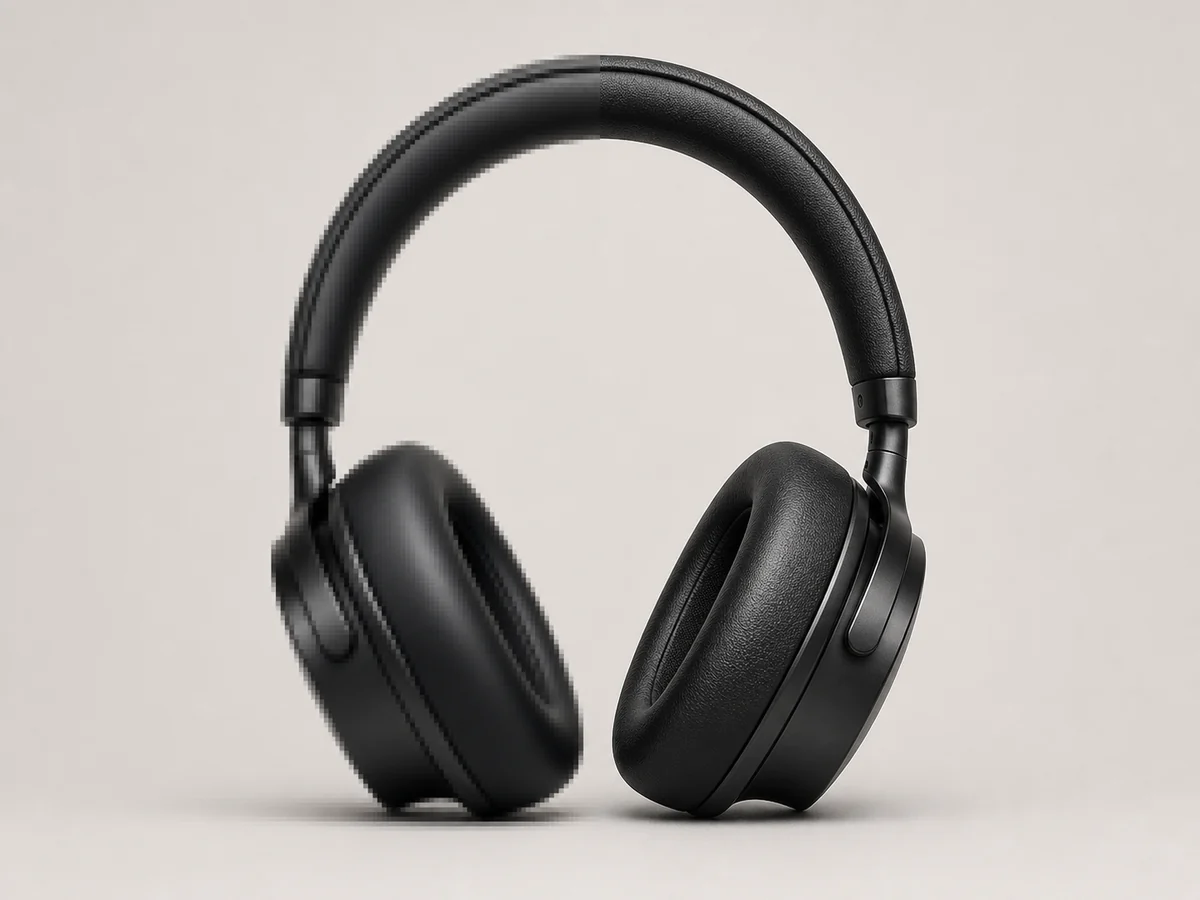
Prepare sharper product assets for listings, ads, and design layouts. Check packaging text, logos, and fine patterns against the source.
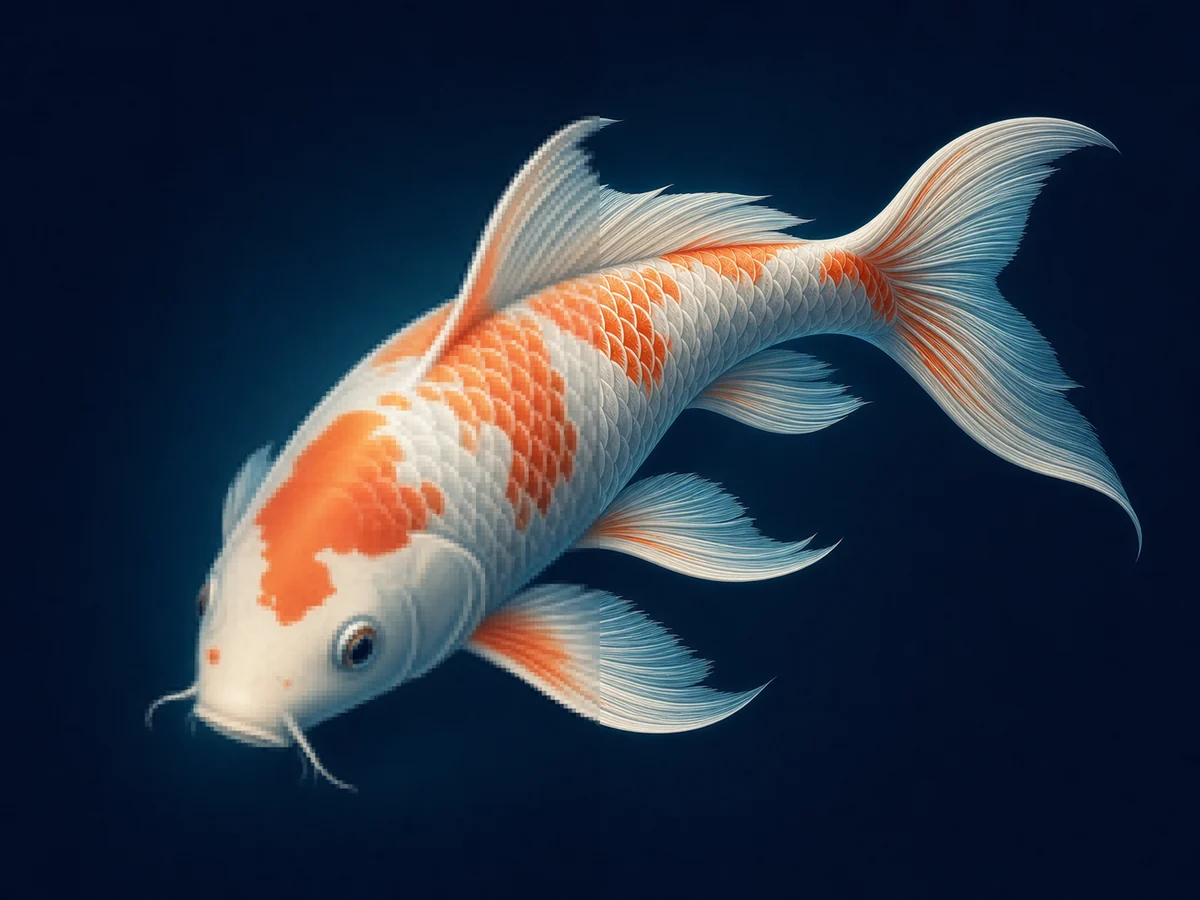
Enlarge generated art, anime, and illustrations with cleaner-looking linework and smoother color transitions. Use the lowest level that meets your goal.
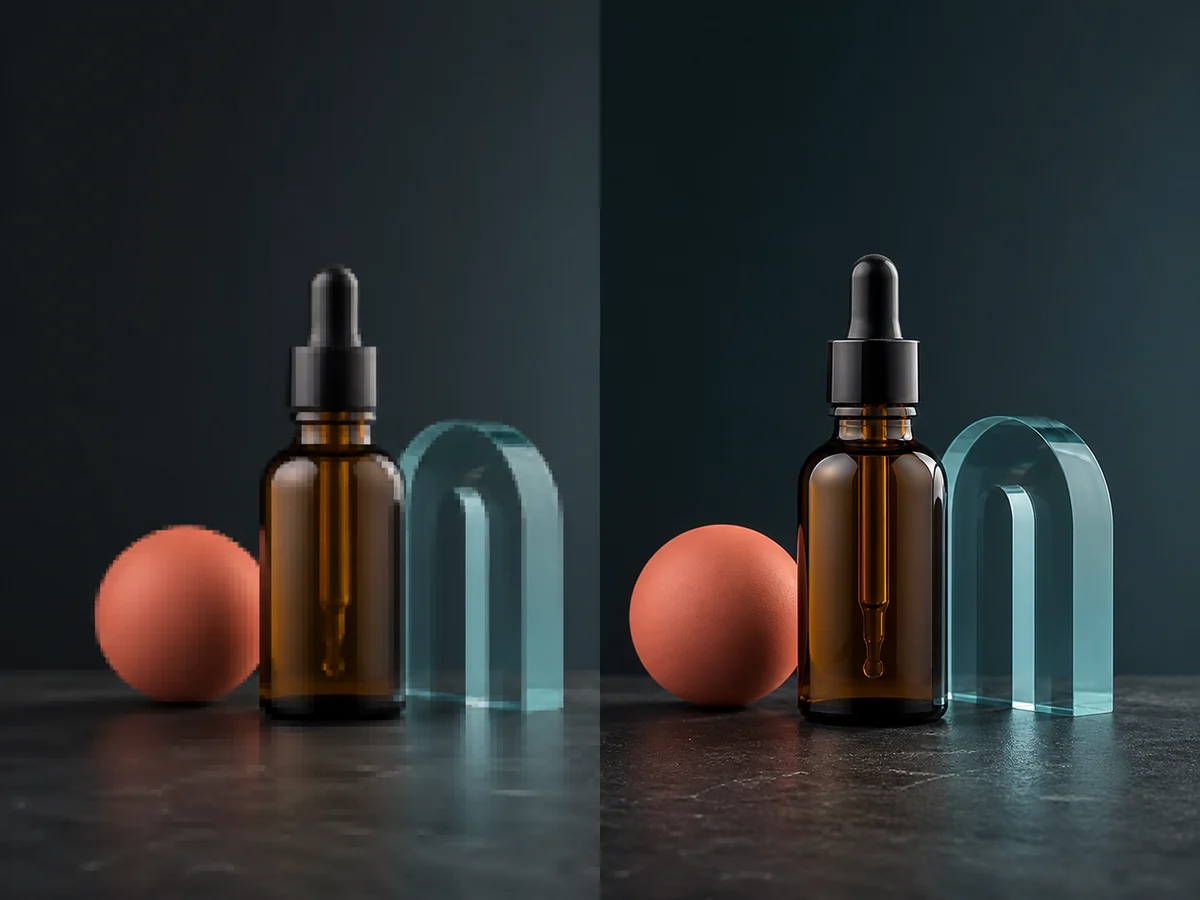
Increase pixel dimensions for ads, posters, and campaign creative. Inspect small text, logos, product edges, and decorative elements before publishing.
Choose a JPG, PNG, or WebP file. Start with the largest, least-compressed source available.
Select 2K for a balanced target or 4K to increase image resolution for a larger layout, display, crop, or print workflow.
Compare the result at 100% zoom, download the high-resolution image, or continue into another YuzuTime tool.
Choose the right workflow
Use an enhancer for noise, lighting, color, and mild blur. Use an upscaler when the image already looks good but needs more pixels.
Prepare supplier photos, catalog crops, and older product assets for listings, marketplace thumbnails, ads, and fresh layouts.
Improve small portraits, profile photos, and family images before sharing, displaying, or placing them in a creative project.
Prepare generated and illustrated artwork for wallpapers, portfolios, print mockups, or higher-resolution editing.
Turn soft or compressed visuals into more usable assets for social feeds, thumbnails, banners, decks, and campaign creative.
Increase pixel dimensions before using an image in a poster, flyer, slide deck, or display. Confirm final size and PPI before production.
Upscale Level
Choose 2K when the original is reasonably clear or you need a balanced output for web, social media, presentations, and moderate layouts.
Choose 4K when you need to make an image 4K-ready for a display, crop, print, or large layout. 4K commonly means 3840 × 2160 for 16:9 media, but exact output depends on aspect ratio and service limits.
A 4K file is not automatically sharp or accurate. Source quality, compression, subject matter, aspect ratio, and the final model all affect the result.
Start with the largest, least-compressed version of the image you can find.
Choose 2K before 4K when a face, logo, or small text must stay close to the original.
Compare at 100% zoom and inspect edges, eyes, fingers, lettering, and repeating patterns.
Use the original vector file for logos and text-heavy graphics whenever it is available.
For transparent PNGs, check the alpha channel around hair, fur, glass, and soft shadows.
Treat AI-created detail as a plausible reconstruction, not recovered ground truth.
Upload one JPG, PNG, or WebP image, sign in, and choose 2K or 4K. 2K requests cost 2 credits; 4K costs 4 credits and requires purchase history. Processing results vary with source quality, subject matter, compression, and fine detail.
Reviewed by the YuzuTime AI product team. Last updated: August 2026.
FAQ
An AI image upscaler increases pixel dimensions while using a trained model to reconstruct cleaner-looking edges, textures, and patterns. This can look more natural than simply stretching the original pixels.
Upload a supported image, choose the 2K or 4K Upscale Level, start processing, inspect the result against the original, and download the higher-resolution file.
Upload the largest source available, then use the AI image upscaler to increase photo resolution to a 2K or 4K output target. Review the result at 100% zoom because added pixels do not guarantee accurate detail.
Use 2K for a moderate output target and when preserving the original appearance matters most. Choose 4K when a larger layout, crop, display, or print workflow needs more pixels.
Yes. Choose the 4K Upscale Level after signing in with an account that has previously purchased credits. Exact output dimensions depend on the source aspect ratio and model behavior.
It can reduce the visible effects of low resolution, compression, and mild blur, but it cannot recover exact detail that was never captured. Severe blur or text damage may need restoration.
Upload the JPEG, JPG, or PNG file, choose a 2K or 4K Upscale Level, and process the image. For transparent PNGs, inspect soft edges and the alpha channel before downloading.
The uploader accepts JPG, JPEG, PNG, and WebP images. Use the largest, least-compressed source available for the best starting point.
These are common upscaling use cases. Results vary with source quality, so check fine edges, faces, text, logos, and repeating patterns before publishing.
Sign in to upscale an image using account credits, including available free account credits. 2K requests cost 2 credits, while 4K requests cost 4 credits and require an account with purchase history.
Files are sent only to provide the requested upscaling job. Review the current Privacy Policy for retention and data-handling details before uploading sensitive content.
Commercial use depends on your rights to the original and YuzuTime’s terms. Upscaling does not grant ownership of content you do not have permission to use.
Upload a photo, product image, portrait, illustration, or AI-generated image, then turn it into a higher-resolution 2K or 4K-quality image.
Open AI Image Upscaler