YuzuTime AI

AI image combiner example result

Combined image preview

GPT Image 2 · auto

Recent combinations

More

No recent image combinations yet.

Prompt-Controlled AI Image Fusion

AI Image Combiner: Merge Two Images Into One

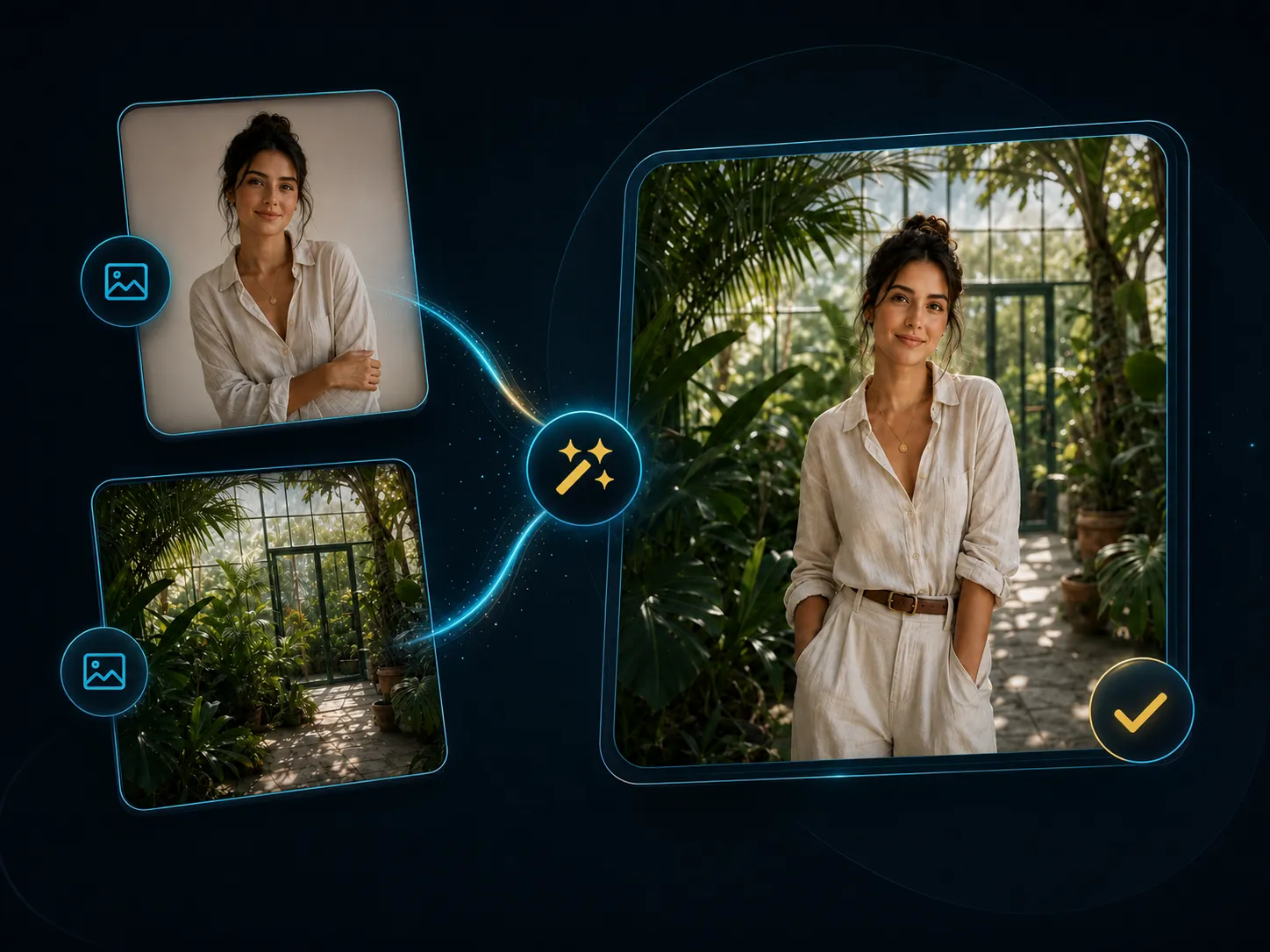
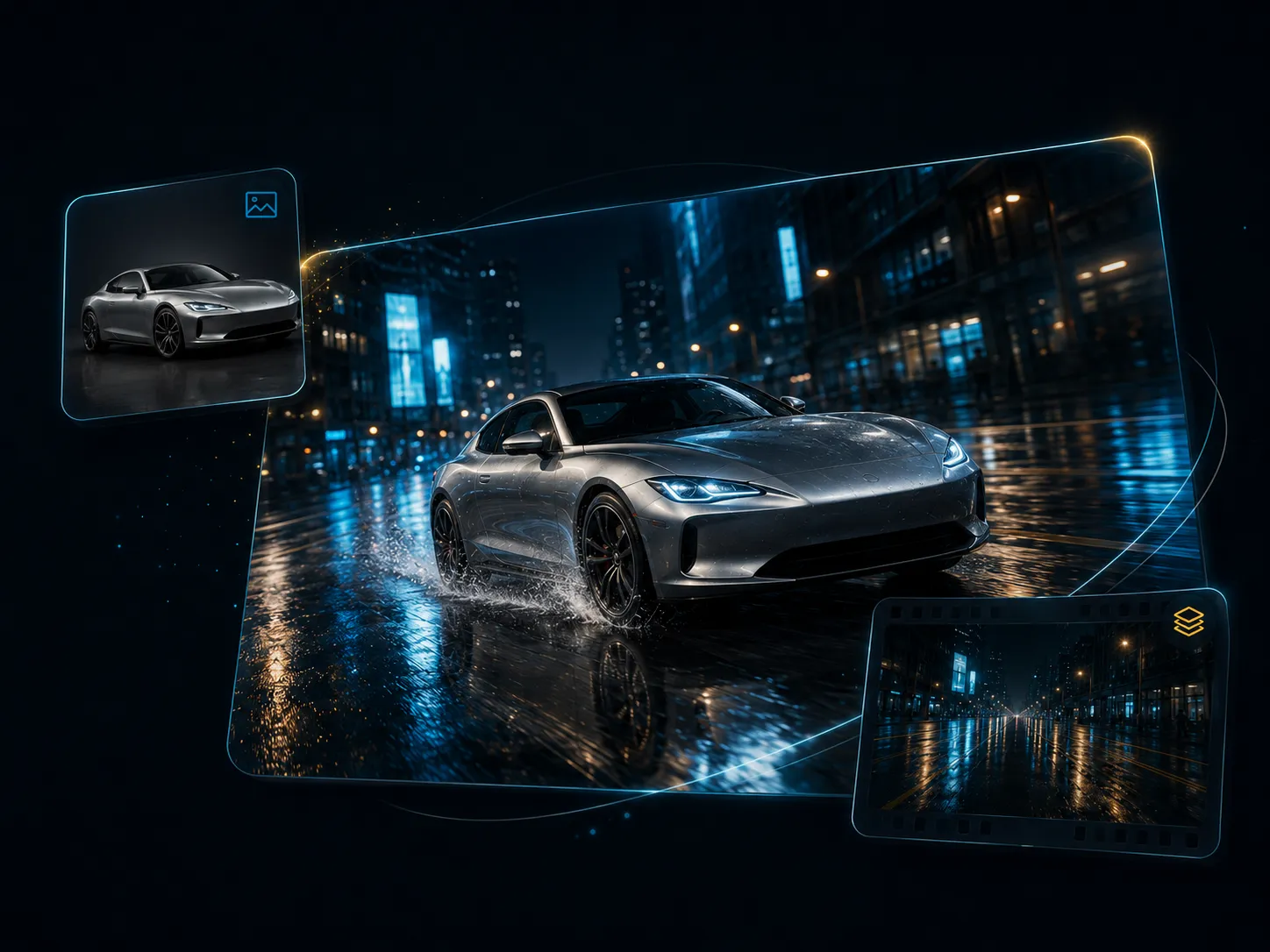
Combine two or more images into one coherent scene with AI. Upload up to four photos, describe how they should interact, and let the model adapt composition, lighting, color, and perspective for a natural-looking result.

AI image combiner example with multiple source images and one unified result

AI Image Fusion Examples

See What You Can Create With Our AI Image Combiner

Use different source images as subjects, scenes, objects, or style references. A precise prompt tells the model which details should stay recognizable and which visual elements should be blended.

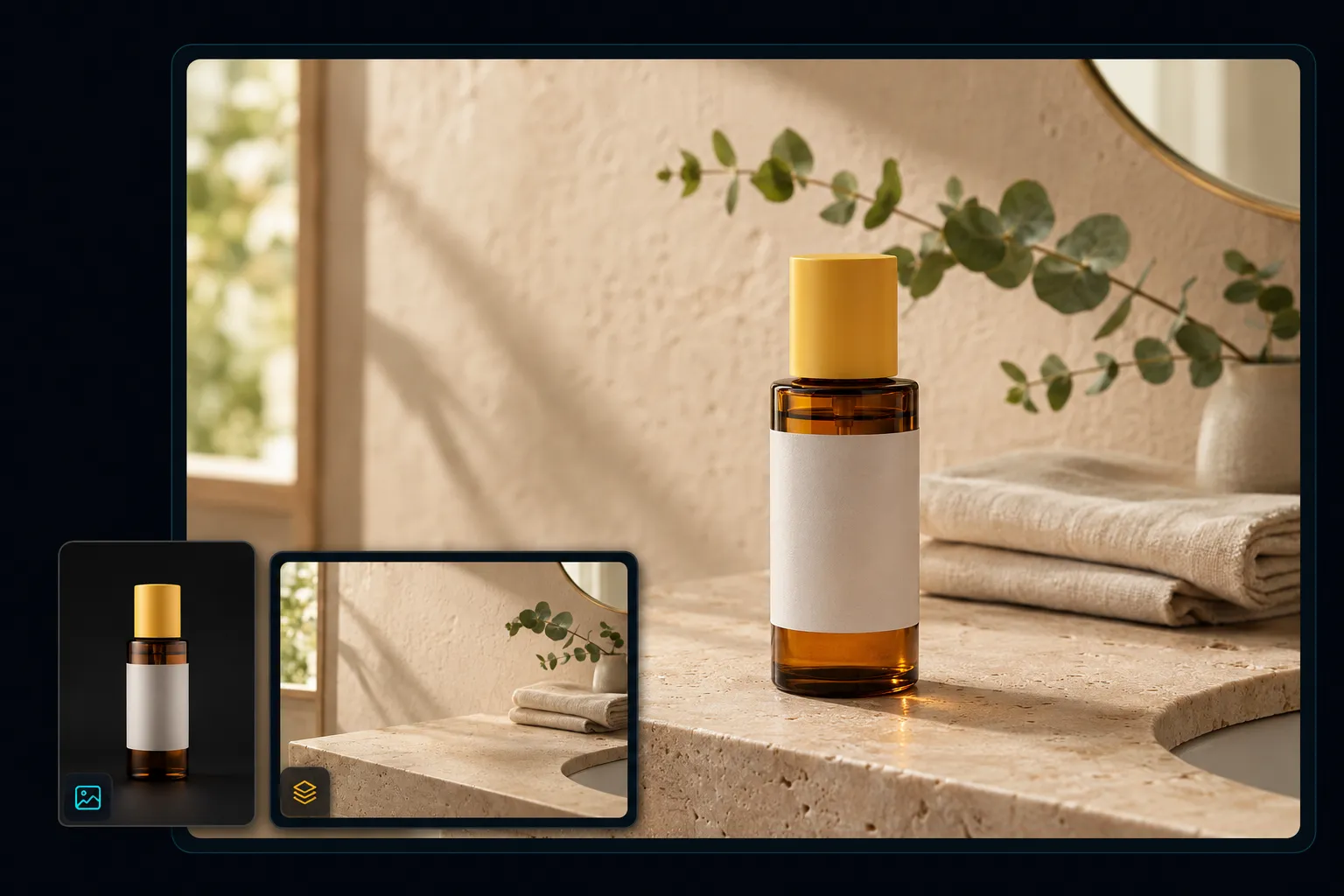
Place a Product in a New Scene

Place a Product in a New Scene

Upload a product photo and a lifestyle background, then ask the AI to place the product naturally in the scene. Describe the position, scale, contact shadows, lighting direction, package colors, logo, and product shape you want preserved.
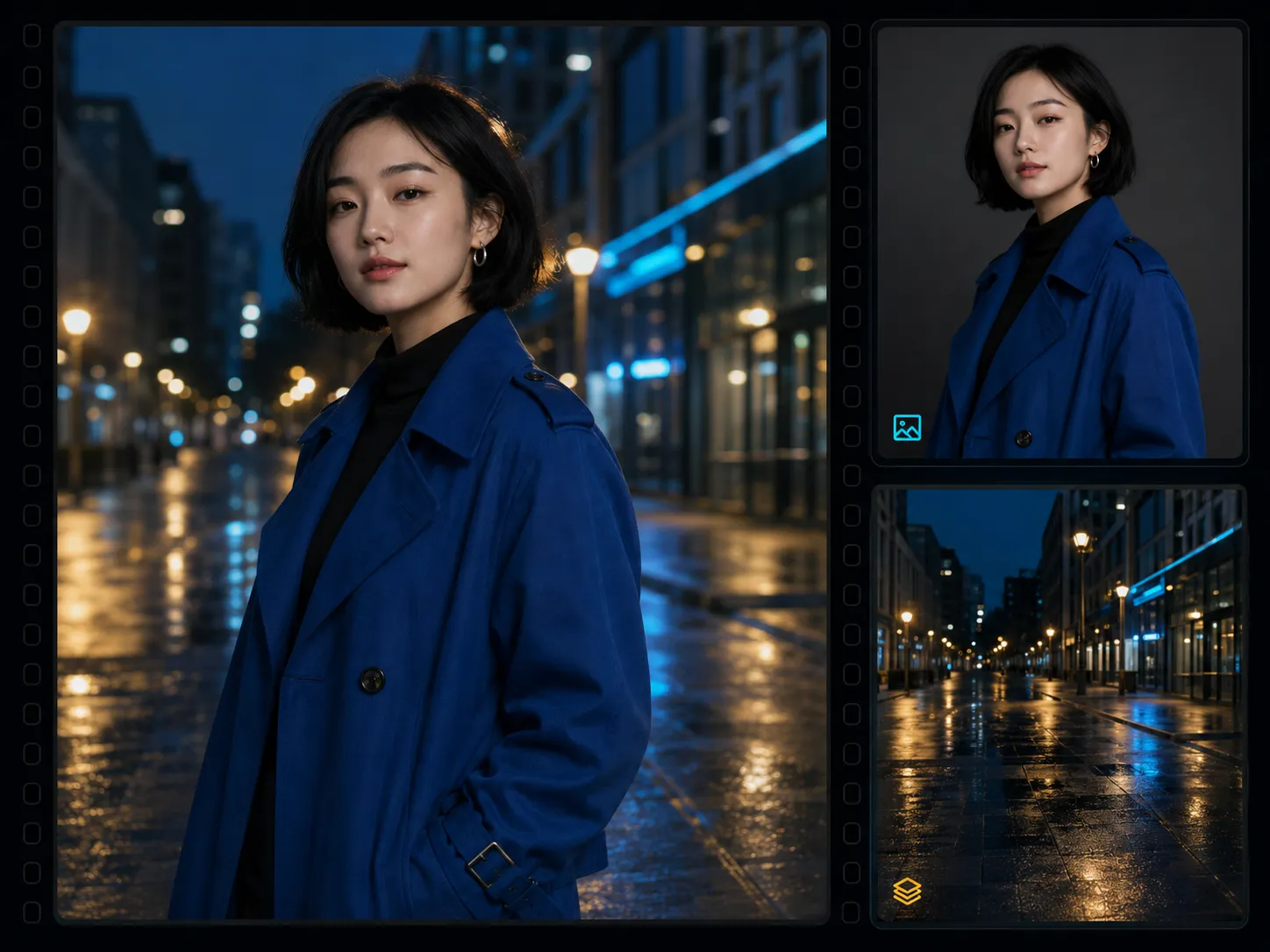
Blend a Portrait Into a New Background

Blend a Portrait Into a New Background

Combine a portrait with a city, studio, travel, or editorial setting. Ask the model to preserve recognizable facial features and clothing while matching the camera angle, depth of field, evening light, reflections, and scene perspective.

Mix Art Styles and Textures

Mix Art Styles and Textures

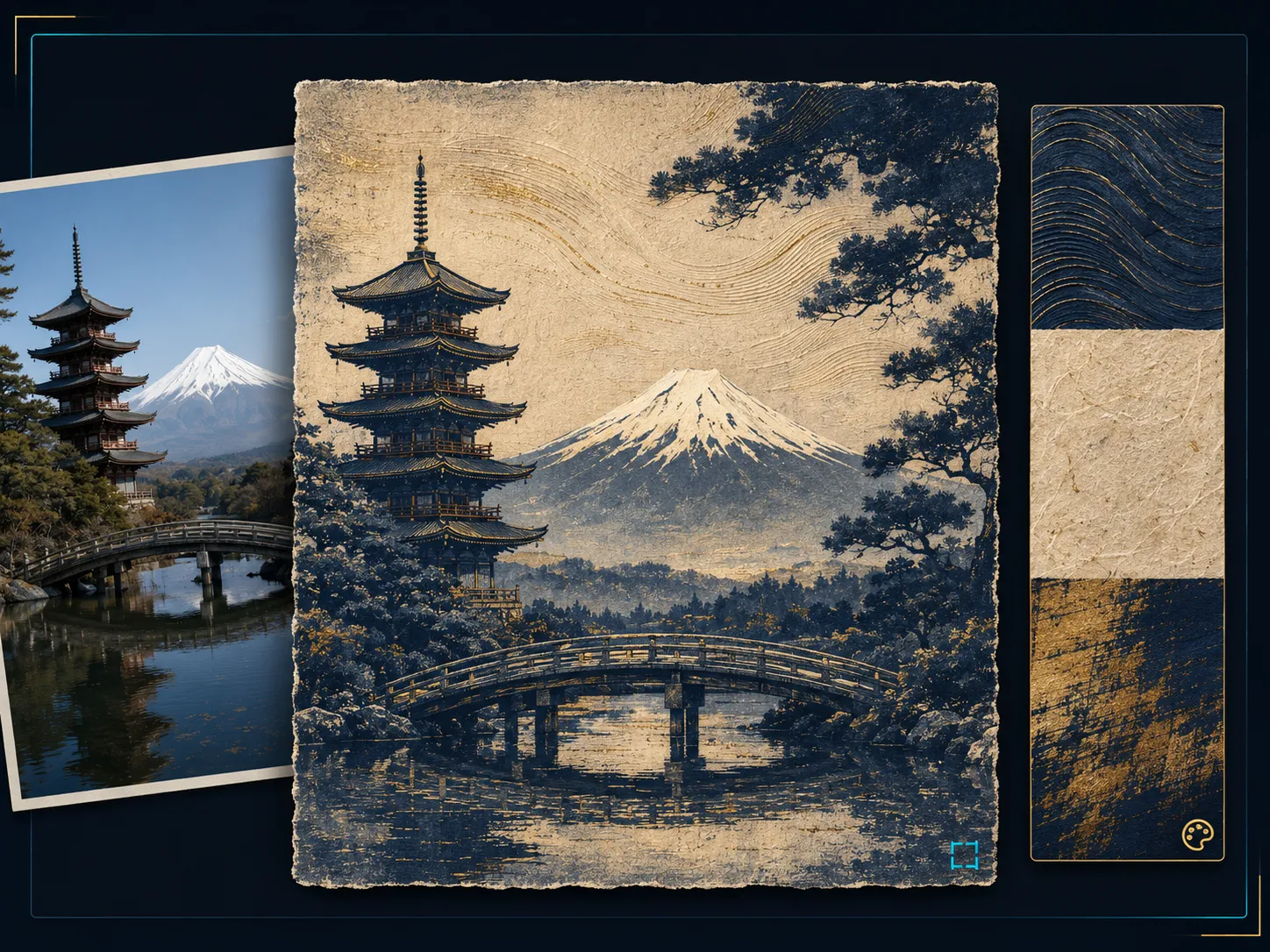
Use one image for composition and another for a color palette, texture, or visual style. Explain which landmarks, shapes, or subjects should remain unchanged while the style reference influences the final image.

Create Natural Image Blends With Prompt Control

Upload up to four images as subject, scene, object, and style references for one combined result.

Choose Nano Banana or GPT Image 2, with GPT Image 2 selected by default.

Guide placement, composition, lighting, color, shadows, camera angle, and perspective with a written prompt.

Keep results and downloads in the same history workflow used by YuzuTime AI image tools.

AI Image Fusion vs. a Traditional Photo Collage

A traditional image combiner or collage usually arranges pictures in a grid or places them side by side. AI image fusion generates a new, unified scene by interpreting the subjects, background, style, and written instructions across the uploaded references.

Use a layout editor when you only need separate photos in a fixed grid. Use this AI image combiner when subjects should interact naturally in one image and details such as lighting, color, depth, shadows, and perspective need to be adapted together.

How to Combine Two Images With AI

Start with clear source images, tell the model what role each image should play, then review and refine the generated combination.

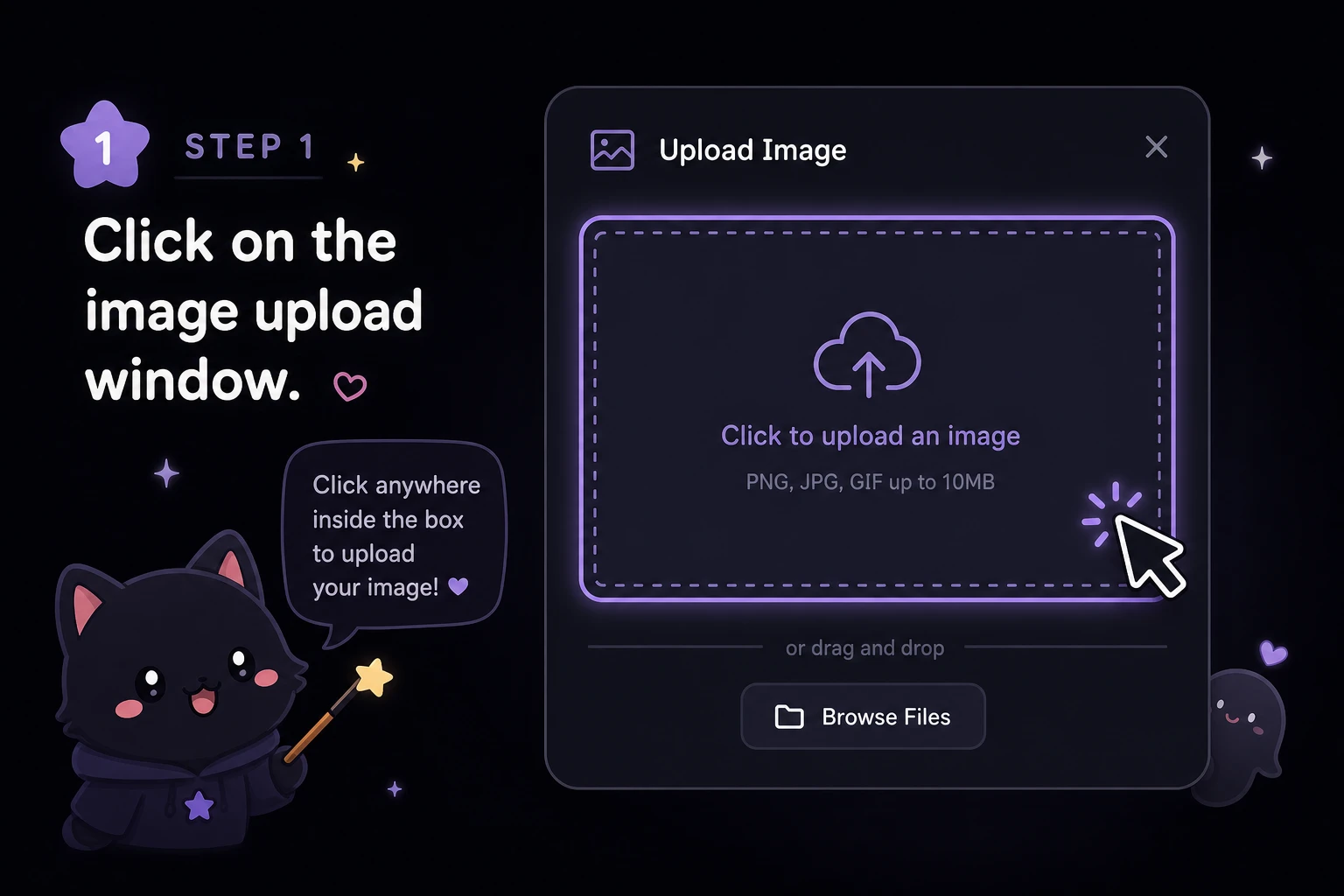
Upload Two or More Images

Step 1

Upload Two or More Images

Choose up to four PNG, JPG, or WEBP images. Use the first image for the main subject and the remaining images for a scene, object, texture, or style reference.

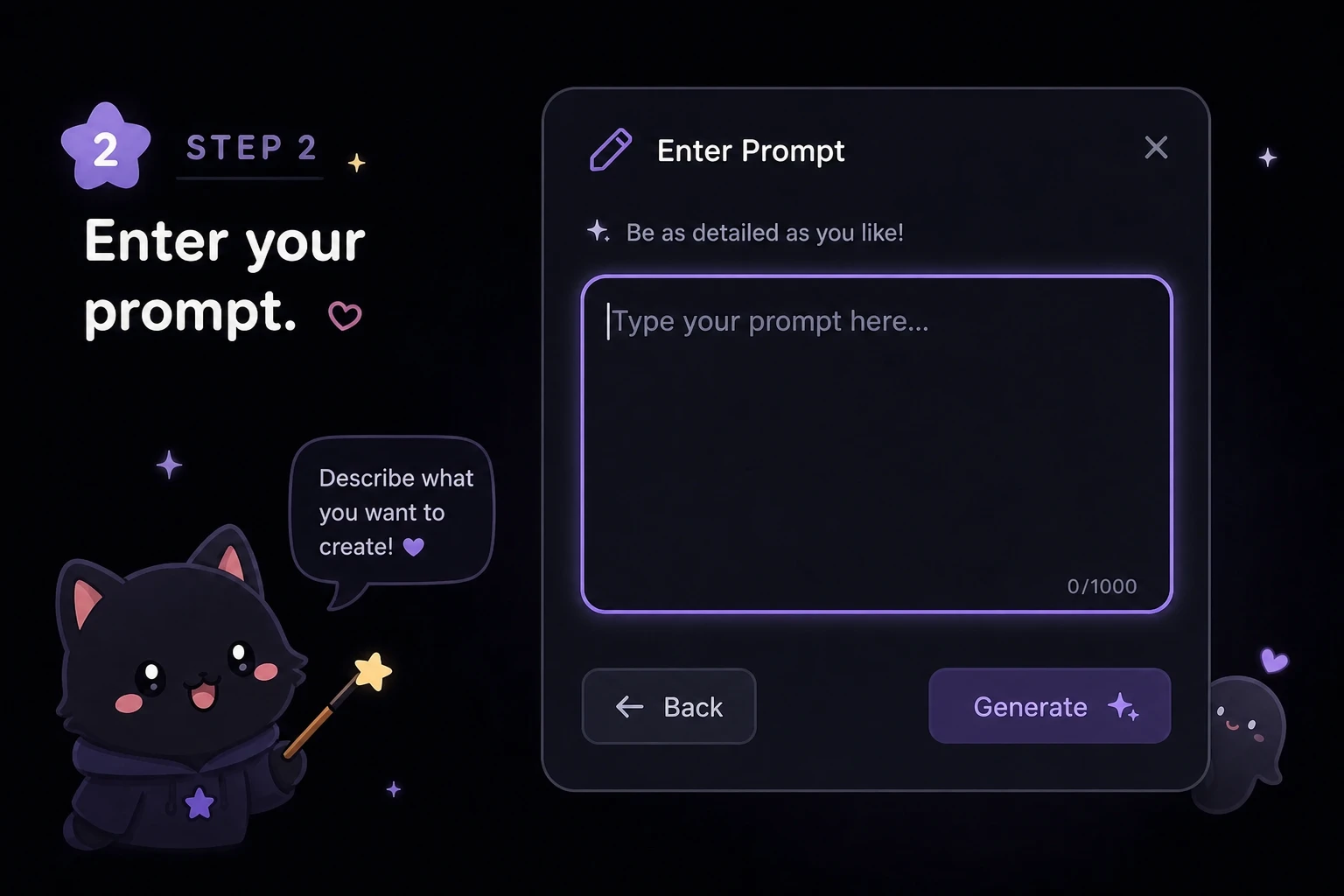
Describe How They Should Be Combined

Step 2

Describe How They Should Be Combined

Explain what to keep, where each subject should appear, and how the lighting, camera angle, colors, shadows, and perspective should match.

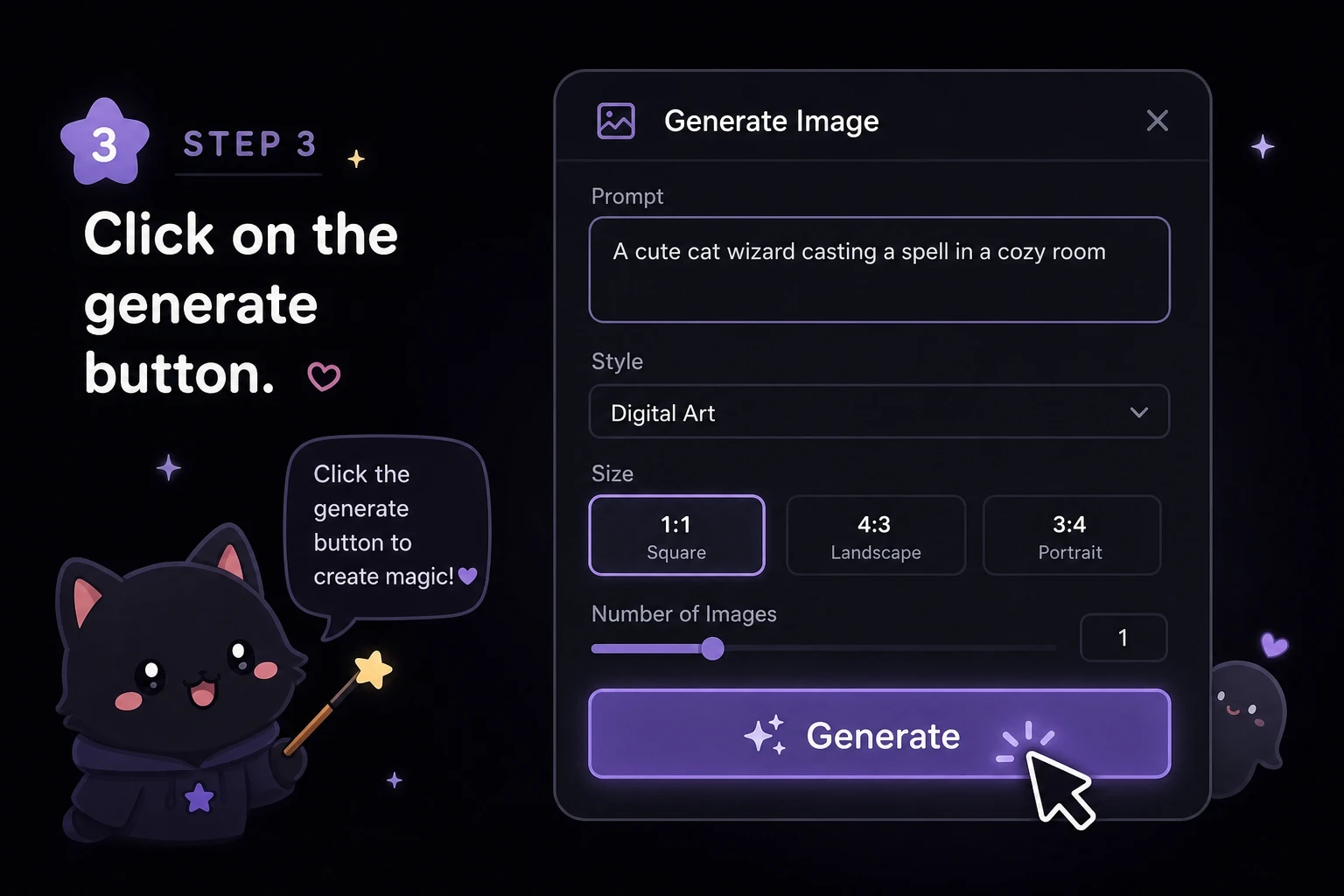
Generate, Review, and Download

Step 3

Generate, Review, and Download

Select Nano Banana or GPT Image 2, choose the output settings, generate the merged image, and refine the prompt if the first composition needs adjustment.

Combine Multiple Images Into One Scene

Upload your source images, assign each one a clear role in the prompt, and create a new composition with subjects, backgrounds, objects, and styles working together.

Open AI Image Combiner

Formats, Limits, and Responsible Use

The workbench accepts common web image formats and up to four source images per generation. Only upload images you own or have permission to use. Output quality depends on source clarity, prompt detail, model behavior, and how compatible the source angles and lighting are.

Reviewed and updated by the YuzuTime AI product team. Last updated: July 2026.

AI Image Combiner Prompt Examples

"Place the product from Image 1 on the cafe table in Image 2. Keep the logo, package shape, and colors unchanged. Match the warm window light and create realistic contact shadows."

Product scene prompt

"Place the person from Image 1 in the city street from Image 2. Preserve facial features and clothing. Match the camera angle, evening light, depth of field, and reflections."

Portrait scene prompt

"Apply the watercolor texture and color palette from Image 2 to the landscape in Image 1 while preserving the original composition and major landmarks."

Style fusion prompt

FAQ

Frequently Asked Questions About Combining Images With AI

What is an AI image combiner?

An AI image combiner uses generative AI to interpret multiple source images and a text prompt, then creates one new composition. Unlike a simple collage, it can adapt subjects, backgrounds, lighting, color, depth, shadows, and perspective so the visual elements appear together in a coherent scene.

How do I combine two images with AI?

Upload the two images, describe the role of each one, and specify what must remain unchanged. Include placement, scale, camera angle, lighting, colors, and shadows in the prompt. Generate the result, then revise the prompt if a subject or visual detail needs stronger preservation.

Can AI combine more than two images into one?

Yes. This workbench accepts up to four images in one generation. Give each reference a clear role, such as main subject, background, additional object, or style reference. Fewer well-chosen images can be easier to control when the sources have conflicting angles, lighting, or composition.

How is AI image fusion different from a photo collage?

A collage keeps the source images separate in a grid, frame, or side-by-side layout. AI image fusion generates a new image and adapts visual details so subjects can share one scene. Use a collage editor for fixed layouts and an AI combiner for a coherent generated composition.

Which image formats are supported?

The uploader accepts common browser image formats including JPG, PNG, and WEBP. Clear, sufficiently large source files usually provide better reference detail. Avoid heavily compressed images when faces, logos, packaging, text, or fine product details need to stay recognizable.

Will the AI match lighting, color, and perspective?

The models can adapt lighting, color, shadows, depth, and perspective, but the result depends on the source images and prompt. Mention the desired light direction, time of day, camera angle, scale, reflections, and contact shadows to give the model a clearer target.

How can I keep a person or product consistent?

Use a sharp source image and state exactly what must stay unchanged, such as facial features, clothing, logo, package shape, proportions, or product colors. Make the reference role explicit and avoid prompts that ask for unrelated changes to the same details.

Does the AI image combiner work on mobile and desktop?

The workbench runs in a modern web browser on desktop and mobile devices. A larger screen can make comparing several source images and reviewing fine details easier, while mobile works well for uploading photos, entering a prompt, and checking the generated result.