How to Create a Professional Headshot With AI: A Practical Guide
Learn how to create a professional AI headshot for LinkedIn, resumes, company profiles, and social media, with practical input and review tips.
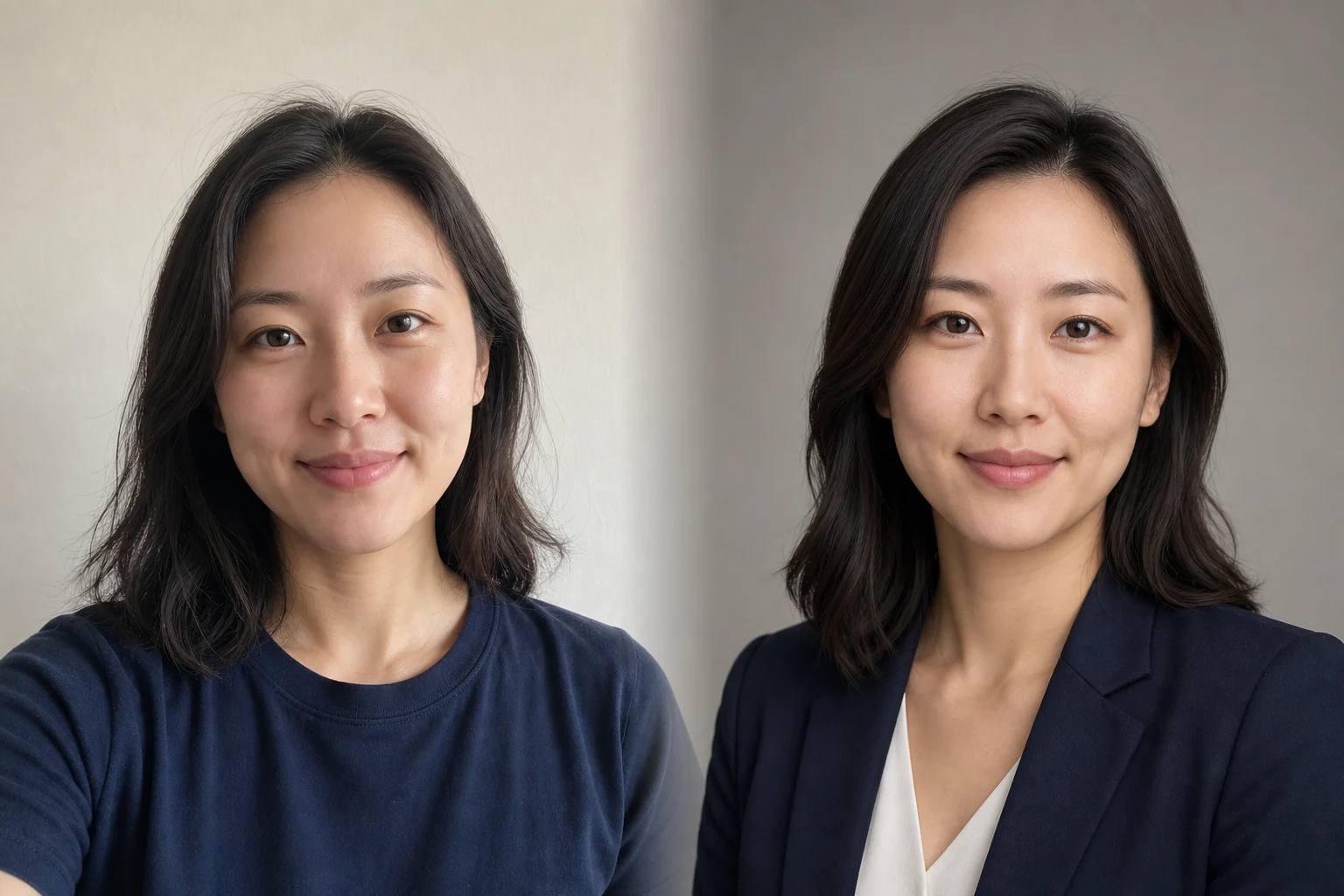
A good professional headshot should solve a simple problem: someone who knows you should recognize you, and someone who does not should understand how you present yourself at work. AI can help when you have a usable photo but lack the time, budget, clothing, background, or lighting for a new studio session.
It can also get the basics wrong. A polished portrait is not useful if the face looks like a relative, the skin resembles plastic, or a generated white coat implies a qualification you do not have. The process matters more than producing the most dramatic image.
Quick answer: To create a professional headshot with AI, start with one recent, sharp, front-facing portrait in even light. Choose the real context where the image will appear, describe an appropriate outfit and background, generate a small set, and inspect the face and clothing at full size. Use a square crop for most profile avatars. Publish only a result that still looks like you.
Reviewed and updated: August 20, 2026
Author: YuzuTime Editorial Team
Editorial scope: This guide covers professional profile portraits for LinkedIn, resumes, company pages, portfolios, and social accounts. It does not cover passport, visa, driver's license, employee verification, or other regulated identity photos.
Image disclosure: The people in this article are fictional AI-created editorial examples. The images explain a workflow. They are not customer results, product benchmarks, or a promise that every source photo will produce the same outcome.
Why AI headshots often disappoint
People rarely complain that an AI headshot lacks polish. The more common problem is that the polish has replaced something important: their face, age, skin texture, usual clothing, or sense of self.
Our short market review looked at official guidance, current product pages, and public user discussions. The forum posts were qualitative and self-selected, so they cannot tell us how often each problem occurs. They do reveal useful failure patterns to check.
| What goes wrong | What you can do in YuzuTime | What still needs human judgment |
|---|---|---|
| The face looks like a cousin | Upload a recent, clear portrait and ask the model to preserve age, facial structure, skin tone, hair, and natural proportions | Compare the result with the original. AI cannot guarantee exact identity preservation |
| Skin looks waxy or heavily filtered | Request natural skin texture, restrained retouching, and soft realistic light | Reject a result that erases normal features or makes you look unlike yourself |
| Glasses, teeth, hair, beard, or clothing edges are wrong | Use an unobstructed source and generate again when a detail matters | Zoom in. A convincing thumbnail can hide broken small details |
| Clothing or background feels wrong for the role | Start with LinkedIn, Corporate, Resume, Creative, Real Estate, or Healthcare, then add a custom direction | Decide what you would actually wear and whether the scene makes a truthful claim |
| The photo fails as a small profile icon | Choose 1:1 and keep the face large enough to read at avatar size | Preview the final crop on the destination platform |
| The tool asks for too much preparation | YuzuTime starts from one portrait rather than a large training set | One weak source photo is still a weak source photo |
An AI headshot generator can reduce the work between a decent source photo and a usable professional portrait. It does not remove the need to choose, compare, and sometimes discard results.
A professional headshot is not an official ID photo
The word "headshot" describes a portrait centered on the face and upper body. It may be used on LinkedIn, a company website, a speaker page, or a social profile. An official identity photo follows rules set by a government, employer, licensing body, or verification service.
Do not submit a generated image for a passport, visa, driver's license, employee badge verification, exam registration, or another identity process. AI can alter facial geometry, hair, skin detail, clothing, or background pixels even when the finished image looks realistic. Follow the issuing authority's current photo instructions and use an unaltered photograph when required.
For professional profiles, the standard is different but still grounded in accuracy. LinkedIn's profile photo rules allow artistic renderings, but the image must reflect your likeness. That is a useful test for any AI profile picture: would a colleague recognize you in a video call or at a meeting?
Choose a source photo the model can use
The source image carries most of the identity information. A long prompt cannot restore an eye hidden behind sunglasses or accurately infer a hairline cropped out of frame.

Use a photo that is:
- Recent enough to match how you look now
- Sharp around the eyes, hairline, nose, mouth, and jaw
- Front-facing or only slightly angled
- Taken near eye level, without a wide-angle selfie distortion
- Lit from the front or side with soft, even light
- Free of sunglasses, masks, heavy filters, motion blur, and deep shadows
- Framed to include the full head and shoulders
- A photo of one visible adult, not a crop from a crowded group image
A phone camera is enough when the light and focus are good. Stand facing a window, clean the lens, place the phone near eye level, and ask someone else to take the picture with the rear camera if possible. LinkedIn's own profile photo guide recommends a current, high-resolution image, a simple background, and a crop in which the face takes up much of the frame.
If you wear glasses, a head covering, facial hair, or other identity-relevant features in daily professional life, include them clearly in the source. Do not rely on the model to reconstruct details that it cannot see.
How to create a professional headshot with YuzuTime
1. Decide where the photo will appear
Write down the destination before choosing a style. "Professional" means different things on a law firm biography, a hospital directory, a design portfolio, and a founder's social account.
Choose one primary use. You can create a second crop or style later, but one image should not be forced to solve every context.
2. Upload one clear portrait
Open the YuzuTime AI Headshot Generator and upload one JPG, PNG, or WebP image. The photo should show one unobstructed adult face. You must sign in, and each successfully created headshot task uses 5 YuzuTime credits.
3. Pick a starting style
The six style options provide a practical first direction:
| Style | Good starting use |
|---|---|
| Recruiter outreach, networking, consulting, and general professional profiles | |
| Corporate | Company About pages, executive profiles, sales pages, and internal directories |
| Resume | Job applications, CVs where photos are customary, portfolios, and speaker bios |
| Creative | Design, media, writing, production, and independent creator profiles |
| Real Estate | Agent biographies, property marketing, and client-facing directories |
| Healthcare | Clinic or hospital profiles for people who are authorized to present themselves in that role |
Use the preset as a starting point, not a costume. If the Corporate option feels too formal for your workplace, move to the custom field and describe what you would wear to meet a client.
4. Add a concrete custom direction
Name the setting, outfit, expression, crop, and light. Then state what should stay unchanged.
Create a natural professional LinkedIn headshot in a navy business-casual blazer over a light blue shirt, with a warm gray studio background and soft window-style light. Keep my recognizable facial structure, age, skin tone, hairstyle, glasses, and natural skin texture. Use a chest-up crop and do not add jewelry, logos, or heavy retouching.
Avoid a string of empty adjectives such as "perfect, premium, world-class, powerful." Those words do not tell the model whether you need a knit polo, a charcoal suit, a clinic background, or a plain wall.
The optional prompt improvement control can add photographic detail. Read the final direction before generating and make sure it has not shifted the intended role.
5. Choose the aspect ratio
Use 1:1 for LinkedIn and most profile avatars. A 3:4 or 2:3 portrait works well on company biography pages and speaker programs. Landscape ratios such as 4:3, 3:2, or 16:9 are useful when a website layout needs space around the subject.
Do not assume the same file will crop well everywhere. Keep the original download, then test the profile crop on the actual platform.
6. Generate, compare, and reject weak results
Do not publish the first attractive version automatically. Compare it with the source at the same size. Then zoom in and inspect the areas that generative images often mishandle.
If the image looks polished but not like you, discard it. A less dramatic result with accurate features is usually better for professional use.
Match the headshot to the job

LinkedIn and general networking
Aim for recognizable and approachable. A neutral background and business-casual clothing work across many industries. Keep the face large in the square crop and check it at the size used in comments and search results.
Approachable LinkedIn headshot, dark blue blazer over a plain open-collar shirt, warm gray background, soft natural light, chest-up square crop, authentic skin texture, and no heavy retouching.
Company and corporate profiles
Match the visual language already used by the organization. If every team photo uses a light gray background and dark jacket, describe that system. Consistency should come from crop, light, background, and dress level, not from changing everyone's face toward the same template.
For a company directory, confirm the image policy with HR or the communications team. Some organizations require a real photography session or a particular disclosure.
Lawyers and client-facing advisors
A restrained suit, blazer, or office-appropriate outfit is usually more credible than a theatrical courtroom scene. Avoid legal seals, courthouse props, awards, or backgrounds that imply an affiliation you do not have.
Professional law firm biography portrait, charcoal blazer, light neutral shirt, simple softly blurred office background, composed natural expression, balanced studio light, and realistic facial detail. No seals, flags, courtroom, or firm logo.
Doctors and healthcare professionals
Use clinical clothing only if it reflects the person's actual work and the organization permits it. A white coat, scrubs, badge, or clinical setting can communicate a credential. Do not add any of them to make a person appear medically qualified.
Calm healthcare directory portrait in the plain clinical attire I normally wear, bright neutral background, soft even light, friendly natural expression, and recognizable facial features. Preserve my glasses and hairstyle. Do not add a badge, logo, specialty, or credential.
Students and recent graduates
A student looking for an internship or first job does not need to appear ten years older or dressed like a senior executive. A clean shirt, sweater, or simple blazer is enough. The image should feel current and easy to recognize in an interview.
Recent graduate resume headshot, simple navy blazer over a plain cream top, clean light background, soft daylight, relaxed confident expression, natural age and skin texture, and a centered chest-up crop.
Personal brands and social profiles
Founders, freelancers, coaches, writers, and creators may want a little more context. A softly blurred studio or workspace can help, but it should not compete with the face. Keep one recognizable anchor, such as the same hairstyle, glasses, color family, or expression, across platforms.
Optional edits before and after generation
Extra tools are useful when they solve a named problem. Running every portrait through several AI edits can gradually move it away from the source.

Remove a beard only when the clean-shaven look is current
If you have recently shaved but your strongest source photo still has facial hair, the Remove Beard From Photo tool can create a clean-shaven reference before headshot generation. Check the jaw, upper lip, skin texture, and face shape carefully.
Do not remove a beard merely because you assume it looks less professional. If you normally have facial hair, keeping it makes the profile easier to recognize and more truthful.
Improve a mildly weak source photo
Use the AI Photo Enhancer when the best available portrait is mildly noisy, dim, low in contrast, or a little soft. The goal is to expose information that is already present, not invent sharper eyes, new teeth, or different skin.
Compare the enhanced image with the original before using it as a source. If the enhancer changes the face, return to the original or take a new photo near a window.
Create a consistent clothing direction
After approving the face, the AI Clothes Changer can help preview a consistent wardrobe direction for a company page or campaign draft. Keep the approved headshot fixed and change only the visible clothing.
Uniform does not mean identical. A team can share a color family and level of formality while allowing each person to wear something appropriate to their role. Never add medical, military, public-safety, academic, or branded uniforms that the person is not authorized to wear.
Review the result before you publish it
Check the full-resolution image first:
- Does the face still match the source, including age and proportions?
- Are both eyes aligned and natural?
- Do glasses have complete frames and plausible reflections?
- Are teeth, lips, ears, hairline, and facial hair believable?
- Does skin retain normal texture instead of looking painted?
- Do the collar, lapels, buttons, seams, and jewelry make sense?
- Is any text or logo invented, misspelled, or distorted?
- Does the background bend around the hair or shoulders?
- Does the clothing make a claim about employment or credentials?
Then shrink the image to a small circle or square. The eyes and general expression should remain easy to read. Make sure the platform crop does not cut the forehead, chin, hair, or shoulders awkwardly.
Finally, ask one person who sees you regularly: "Would you recognize me from this photo?" That question is more useful than asking whether the image looks expensive.
Privacy, consent, and representational bias
A portrait contains identifiable information. Upload only your own photo or an adult's photo that you have permission to edit. Read the current YuzuTime Privacy Policy before uploading a sensitive image, and follow your employer's rules when handling staff portraits.
AI can also change identity-relevant features. Berkeley Law reported that researcher Mahwish Moazzam tested more than 25 AI headshot generators and found that the tools removed or distorted her hijab. Read Berkeley Law's account of the research for the context and method.
Inspect religious clothing, skin tone, hair texture, age, disability aids, scars, and other meaningful features. State what must remain in the prompt, but do not assume the instruction will always work. Reject a result that rewrites the person's identity to fit a narrow idea of "professional."
Tell viewers when an AI-generated portrait could reasonably be mistaken for documentary evidence, especially in journalism, recruiting, regulated work, endorsements, or public claims. Never use a generated headshot to impersonate someone or fabricate employment, qualifications, attendance, or support.
When a photographer is the better choice
Choose a real photographer when:
- The organization requires an unedited or standardized photograph
- Exact likeness and repeatable lighting matter across a large team
- The portrait will support licensure, official media, press, or a high-trust public role
- You need reliable full-body posing, environmental details, print quality, or several angles
- The AI repeatedly changes identity-relevant features
- You need clear contractual rights, model releases, art direction, and accountable human retouching
AI is most useful when the risk is modest and the reader understands what the image represents. A LinkedIn refresh and a regulated credential do not carry the same standard.
A practical first attempt
Take one clear portrait today in soft window light. Open the AI Headshot Generator, choose the closest professional context, and add one sentence about clothing and background. Use 1:1 if the main destination is LinkedIn.
Generate the result, compare it with the source, and keep it only if it passes the full-size and thumbnail checks. If the input is the problem, fix the source rather than adding more adjectives to the prompt.
Frequently asked questions
Can I create a professional headshot from one selfie?
Yes. YuzuTime accepts one source portrait. Use a recent, sharp selfie with one visible adult face, soft even light, a complete hairline, and no heavy filter. A rear-camera photo taken by another person may reduce wide-angle selfie distortion.
What is the best background for an AI professional headshot?
A plain warm gray, light neutral studio background, or softly blurred real workplace suits many profiles. Choose a background that fits the destination and does not imply an employer, location, or qualification that is not real.
What should I wear for a LinkedIn headshot?
Wear what you would reasonably wear to meet a colleague, recruiter, or client in your field. A plain shirt, knit top, blazer, or understated suit often works. Solid colors are easier to generate and crop than small checks, fine stripes, complex jewelry, or prominent logos.
Why does my AI headshot not look like me?
The source may hide important facial information, or the model may favor a generic professional portrait over your specific features. Start with a clearer recent photo, ask to preserve recognizable identity and age, reduce dramatic styling, and reject results that change facial geometry.
Can I remove my beard before generating the headshot?
Yes, if a clean-shaven face matches how you look now or how you will present yourself professionally. Use the beard removal result as a source only after checking the jaw, lips, skin, and face shape. Keep the beard if it is part of your current appearance.
Can a company use AI to make all employee headshots match?
AI can help create a shared crop, background, lighting direction, and dress level. Each employee should consent, review their own result, and remain recognizable. Do not add uniforms, badges, or credentials, and follow the company's image and disclosure policy.
Can I use an AI headshot on a resume?
You can use one where resume photos are customary and the employer or platform permits it. Hiring norms differ by country and industry. The image should represent your current appearance and should not change age, identity, or qualifications.
Can I use an AI headshot for a passport or ID card?
No. Use a photograph that follows the issuing authority's current rules. Generated portraits may alter identity details and are not suitable for passports, visas, licenses, identity verification, or similar official uses.
Sources and editorial method
This article combines a review of YuzuTime's current headshot interface and API contract with official platform guidance, public product pages, qualitative user discussions, and reporting on representational bias. Public discussions were used to identify questions and failure modes, not to estimate how frequently they occur. Product features and pricing were checked on August 20, 2026.
- LinkedIn Help: Profile photo guidelines and conditions
- LinkedIn Talent Blog: 10 tips for taking a professional LinkedIn profile photo
- Berkeley Law: AI headshot apps removed her hijab
- YuzuTime Privacy Policy
Features, pricing, platform rules, and external guidance can change. The review date at the top shows when this guide was last checked.
Related YuzuTime tools
AI Headshot Generator
Turn one clear portrait into a professional headshot for LinkedIn, resumes, company profiles, and personal branding.
AI Photo Enhancer
Improve mild blur, noise, lighting, and color before using a source photo, while checking that facial detail stays accurate.
AI Clothes Changer
Preview a different outfit or create a consistent wardrobe direction after the main headshot is approved.