Upload one clear portrait
Choose a PNG, JPG, or WebP image with one visible face. Front-facing, well-lit photos give the model more information about the beard, jaw, and surrounding skin.
髭なしプレビュー
GPT Image 2 · auto
最近の髭削除
もっと見る最近の髭削除履歴はありません。
AI Beard Remover
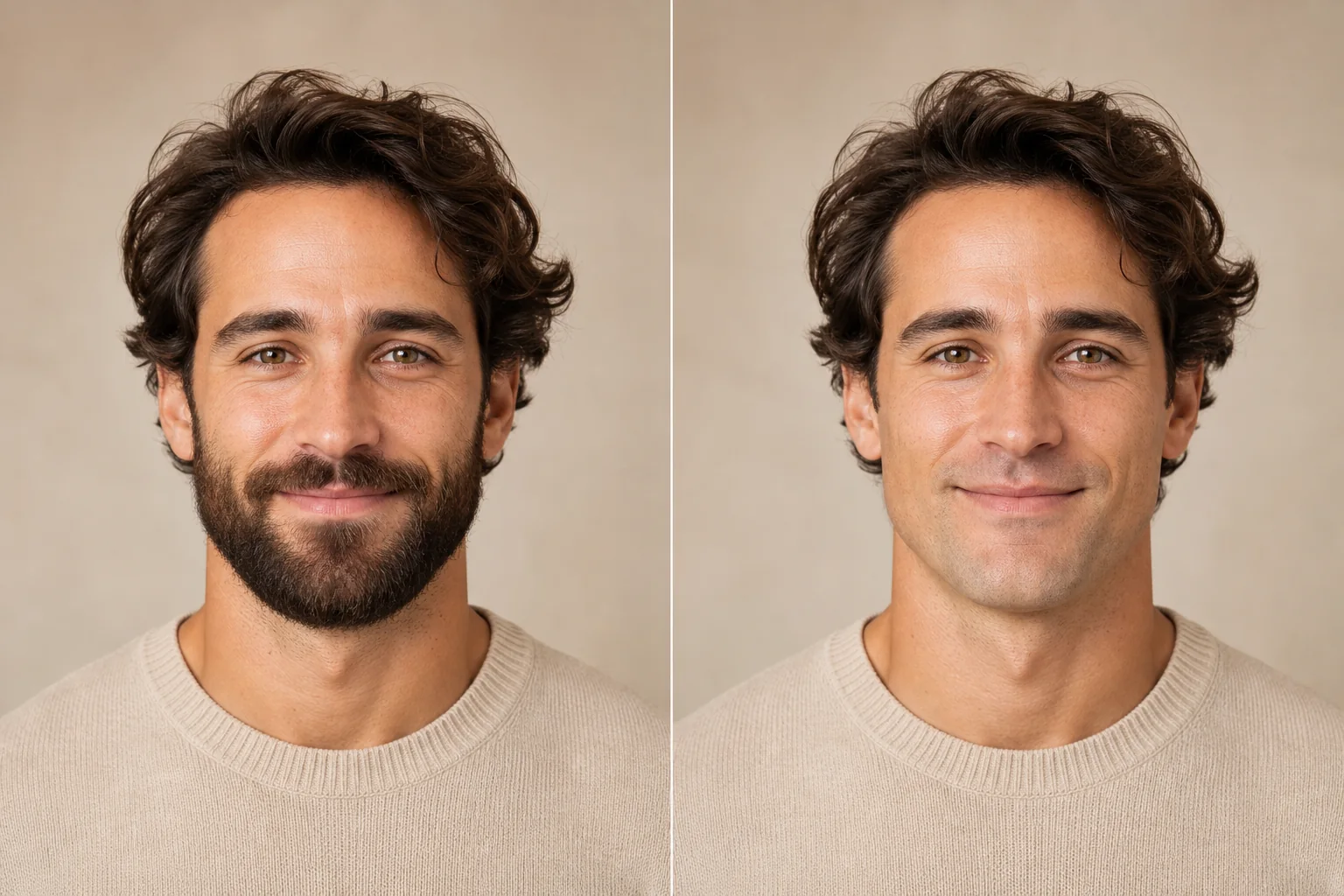
Use our no beard filter online to preview a clean-shaven version of your portrait. Upload one clear photo and let AI remove visible facial hair while aiming to preserve your recognizable features, expression, and lighting.
Sign-in is required and each edit uses credits. The exact cost is shown in the workbench before you generate.
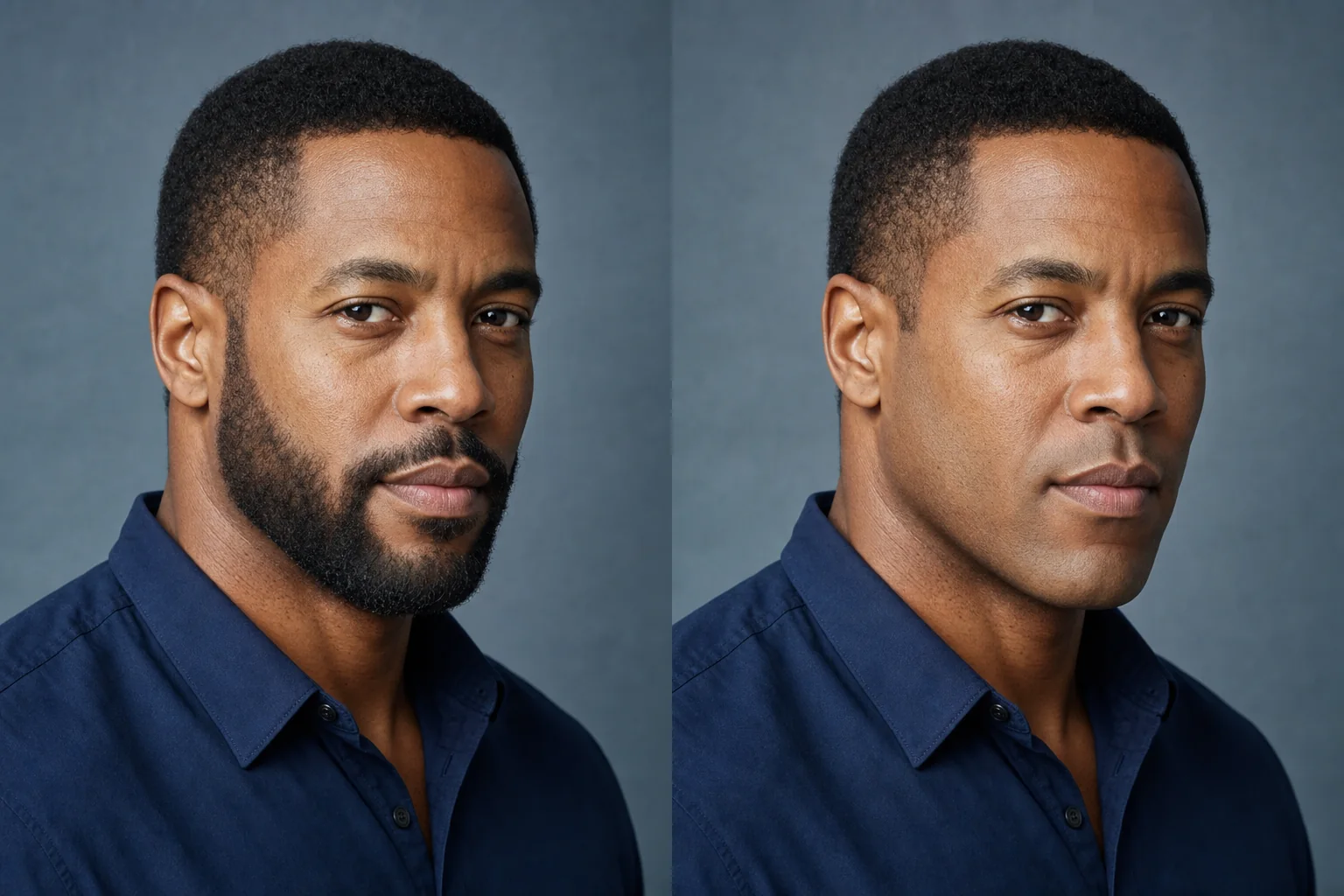
Generated facial-hair edit
A no beard filter, also called a beardless filter, edits a portrait to create a clean-shaven look. If you are looking for a no facial hair filter, YuzuTime removes visible facial hair as part of a complete portrait edit.
AI uses the visible face shape, surrounding skin, lighting, and expression to generate the preview. Because facial hair hides real pixels, the reconstructed skin, chin, and jawline are an AI interpretation rather than a factual recovery of what is underneath.
Three-step workflow
Choose a PNG, JPG, or WebP image with one visible face. Front-facing, well-lit photos give the model more information about the beard, jaw, and surrounding skin.
Choose an available model and supported output settings, then check the credit cost before starting your edit. Sign-in and credits are required for generation.
Select Remove Beard, compare the clean-shaven preview with your original photo, and review the face at full size before downloading. Completed results also appear in your recent history.
Common facial-hair looks
The fixed edit asks the selected model to remove visible beard, mustache, goatee, sideburn facial hair, and stubble. Results depend on the source photo and model, especially when dense facial hair hides most of the jawline.
Dense facial hair can be removed, but it also hides more of the real chin and jawline, so the generated shape needs careful review.
The fixed edit asks the model to remove visible mustache hair together with the beard and other facial hair.
A clear view of the mouth, chin, and beard edge helps the model rebuild a more coherent clean-shaven area.
Visible sideburn facial hair is included in the edit while the hairstyle and surrounding scene are intended to remain unchanged.
Fine stubble may be easier to blend naturally when the original image is sharp and evenly lit.
This page applies a complete clean-shaven edit. It does not currently offer controls to keep only a mustache, beard, or selected stubble area.
Personal and creative uses
Compare a bearded portrait with an AI-generated clean-shaven version before making a real grooming decision. The result is a style preview, not an exact prediction of what is hidden beneath the beard.
Create a clean-shaven concept for a LinkedIn profile, portfolio, dating profile, team page, or event mood board. For a factual current appearance, take a new photo after changing your facial hair.
Place the original and edited portrait side by side for a personal comparison or social post. Keep the source image and make it clear when the second image is AI-edited.
Use the preview as a reference when discussing a new look with a barber, photographer, stylist, or creative team.
Better source, better preview
Review before downloading
Dense facial hair, low light, unusual angles, face coverings, low resolution, and multiple people can reduce accuracy. The model may change parts of the jawline, mouth area, or skin texture because those details are hidden in the source.
Do not use an AI-edited result for a passport, visa, government ID, identity verification, legal record, or evidence. These uses generally require an original, unedited photo.
Upload only photos you own or have permission to edit. Images are sent to YuzuTime and its processing providers to complete the requested edit, and completed tasks may appear in your history.
Storage periods can differ for uploads, outputs, safety reviews, technical logs, disputes, and legal requirements. Review the current Privacy Policy and Terms of Service before uploading sensitive or client-owned portraits.
Continue editing
FAQ
Content updated September 7, 2026
Yes. An AI no beard filter creates a clean-shaven version of a portrait by editing the facial-hair area and generating plausible skin and facial contours. Results vary because the model cannot see details hidden by the beard.
Upload one clear portrait, choose an available model and supported output settings, review the credit cost, and select Remove Beard. Compare the completed preview with your original before downloading it from the workspace or history.
Yes. The edit asks AI to remove the beard and mustache together, along with goatee, sideburn facial hair, and stubble. It does not provide selective controls for keeping only one type of facial hair. Review the result, since dense hair can make the generated face less predictable.
Not on this dedicated page. It applies a complete clean-shaven instruction and does not currently provide selective controls for preserving only a mustache, beard, or stubble area.
The edit aims to preserve recognizable features, expression, pose, lighting, and the surrounding image, but AI must generate details hidden by facial hair. The jawline, mouth area, or skin texture may change, so compare the preview with your original before using it.
No native app download is required. You can upload a portrait and use YuzuTime in a supported desktop or mobile browser. This tool edits one uploaded photo, rather than live camera footage or video. Sign-in and credits are required for generation.
This feature requires sign-in and uses credits. Check the cost shown in the workbench before generating. Any available account credits and their conditions should be checked in your account.
The current workbench accepts PNG, JPG, and WebP images and uses one uploaded portrait for each beard-removal request.
Uploads and outputs are processed to provide the requested edit, and completed tasks may appear in history. Retention and provider handling can vary, so review the current Privacy Policy for the applicable terms before uploading sensitive images.
No. Use an original, unedited photo for passports, visas, government IDs, identity verification, legal records, and evidence. An AI-generated clean-shaven preview is intended for personal, creative, and style-exploration use.