01Beauty & skincare
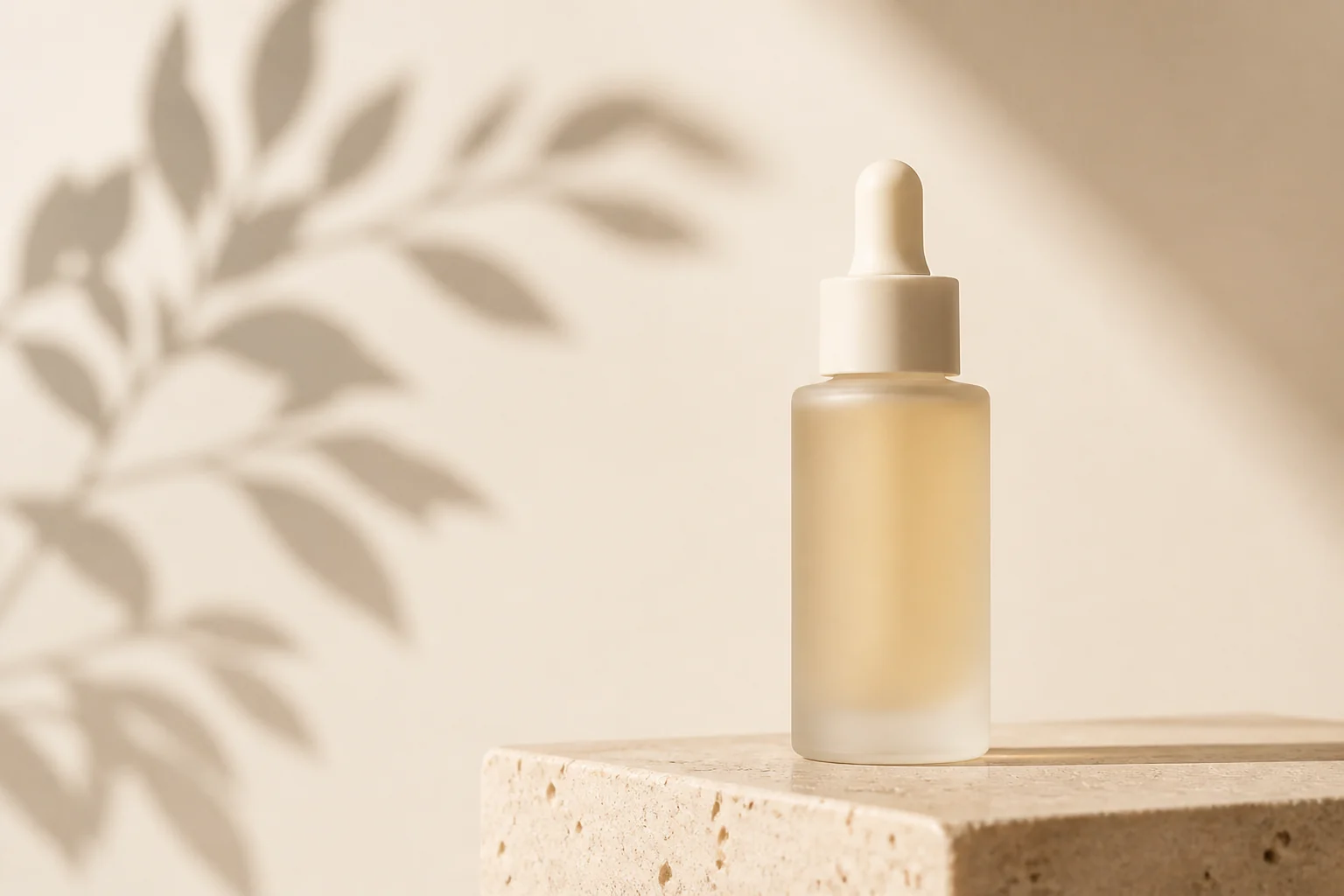
A clean studio, soft light, room to breathe.
Create a new setting for the product you already sell. Upload a clear product photo, choose or describe a scene, and generate AI product photos to review for your store or next campaign.
Recent product photos
MoreNo recent edits yet.
A new setting for what you sell
Turn a product photo into a new visual direction. Choose the surface, the background, and the light. Let your product lead the picture.
AI product photography starts with your own image and a scene prompt. Create studio and lifestyle concepts for your store, your social feed, or your next campaign.
Create a product photo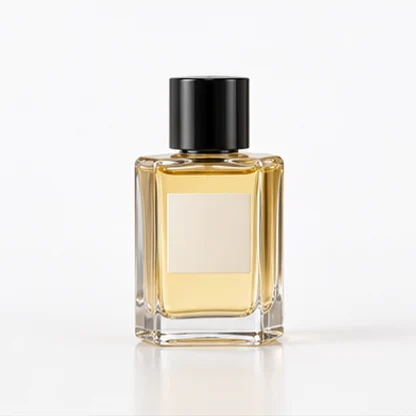 PRODUCT REFERENCE
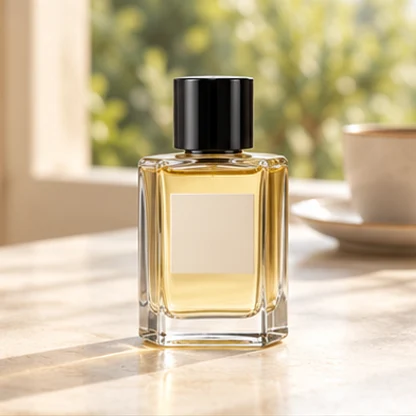 A NEW SETTING
Same starting point. Different possibilities.
A clean studio, warm marble, a wooden tabletop, or the light outside. Choose a scene in the Style tab, or write your own in Custom.
THE STARTING POINT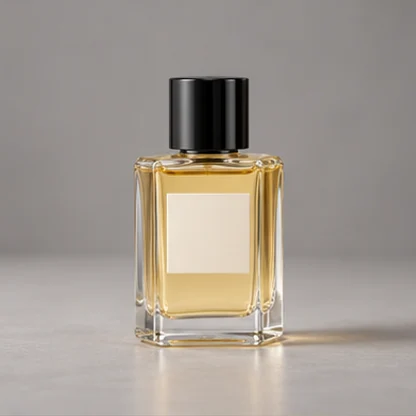
A quiet backdrop. Soft, even light.
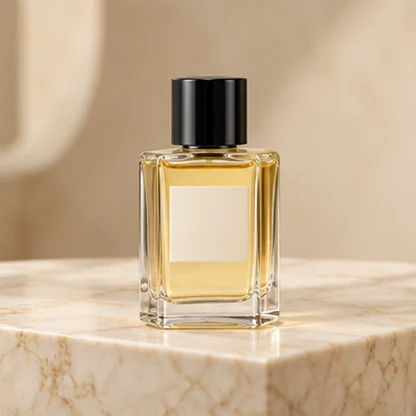
Warm stone and considered shadows.
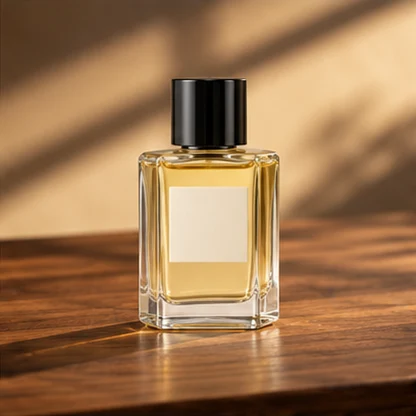
Rich texture. Afternoon sunlight.
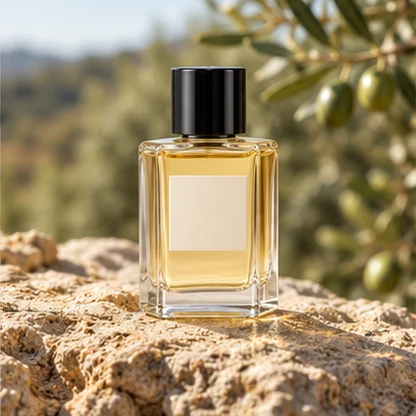
Fresh air and natural highlights.
Illustrative scene variations. Select a style to try it with your own photo.
Small details. Very different products.
From skincare to homeware, start with a clear product photo.
Describe the setting that belongs around it.
01Beauty & skincare
A clean studio, soft light, room to breathe.
02Home & everyday
A sunlit kitchen counter with a lived-in feel.
03Jewelry & accessories
Warm light that brings out the finer details.
Scene inspiration. Check labels, colors, and shape against your original before publishing.
One photo. A few good reasons to explore.
SCENARIO 01
SCENE CONCEPTPRODUCT LISTINGS
Give your store a simple, distraction-free product image. Start with a white or neutral backdrop and leave the item in focus.
Try a clean backgroundSCENARIO 02
SCENE CONCEPTSOCIAL & CAMPAIGNS
Explore warm light, natural surfaces, or a seasonal setting for social posts and campaign ideas, using your product as the reference.
Explore natural lightSCENARIO 03
SCENE CONCEPTYOUR BRAND, MORE SETTINGS
Try different settings before arranging a full shoot. Compare the atmosphere, then choose the direction that fits your brand.
Try a lifestyle sceneThree steps, one fresh setting
A clear image and a little direction. You decide what stays in focus and what changes around it.
Start with one clear PNG, JPG, or WebP photo. Keep the whole item visible and the label easy to read.
Pick a preset in Style or describe your own background, surface, and light in Custom. Choose your ratio and quality.
Sign in and generate with account credits. Compare product details with your original, refine the scene, and download your result.
Your product
“Warm wood, afternoon sun, a soft shadow. Keep my product in focus.”
A new scene
A few things you might be wondering
The practical details: product photos, prompts, credits, and what to look for in your results.
AI product photography uses artificial intelligence to edit a product photo or create a new scene around it. This product image generator starts with your own photo as a visual reference. Choose a scene prompt, generate an image, and compare product details with the original before publishing.
Yes. Upload one PNG, JPG, or WebP image with the whole product visible and important details readable. A text-only concept cannot reliably reconstruct an existing item. Use a sharp source photo with balanced light and avoid screenshots when the original is available.
The prompts ask GPT Image 2 to preserve visible product details, but AI can still alter lettering, logos, colors, proportions, and materials. Compare the generated image with the product customers will receive. Use original photography or manual editing when exact details are essential.
Choose Pure White Studio in the Style tab to use a preset prompt with a white backdrop and soft contact shadows. Review the resulting background color, edges, and any transparent or reflective areas. The preset is an editing instruction, so inspect the result rather than assuming an exact cutout.
Generation uses account credits and requires sign in. The selected quality and its credit cost appear in the editor before you generate. Check your account for available credits and the pricing page for current offers. Medium and high quality require a paid account.
Review the current image requirements for your platform, product category, and image placement. Generated images are not automatically approved or compliant. Check that the image accurately represents the item and that you have the necessary rights to the source image and visible branding.
Try a sharper source photo, simplify the scene, and ask the editor to preserve the original lettering and packaging. Compare at full size. If text or other essential details still change, use the original product photo or a manual editing workflow.
Start with a clear photo of the actual item and describe a suitable scene. Small print, transparent bottles, reflective metal, and fabric texture need close review. One photo cannot establish hidden surfaces, dimensions, or material specifications.
After generation completes, inspect the preview and use the download button. Aspect ratio and quality are selected before generation; inspect the downloaded file for its final pixel dimensions and format before preparing a listing or advertisement.
AI can help explore backgrounds and scene variations from an existing image. Original photography remains useful for exact materials, hidden details, fit, dimensions, and consistent catalog photography. Keep the original image as your reference.
A different task? There’s a tool for that.
Change a background, combine references, or prepare a larger image. Keep working with the tool that fits your next edit.
Your product is the starting point.
Upload a photo. Set the scene. See where it takes you.
Create a product photoPNG, JPG, or WebP · Sign in to generate with account credits