Place a Product in a New Scene
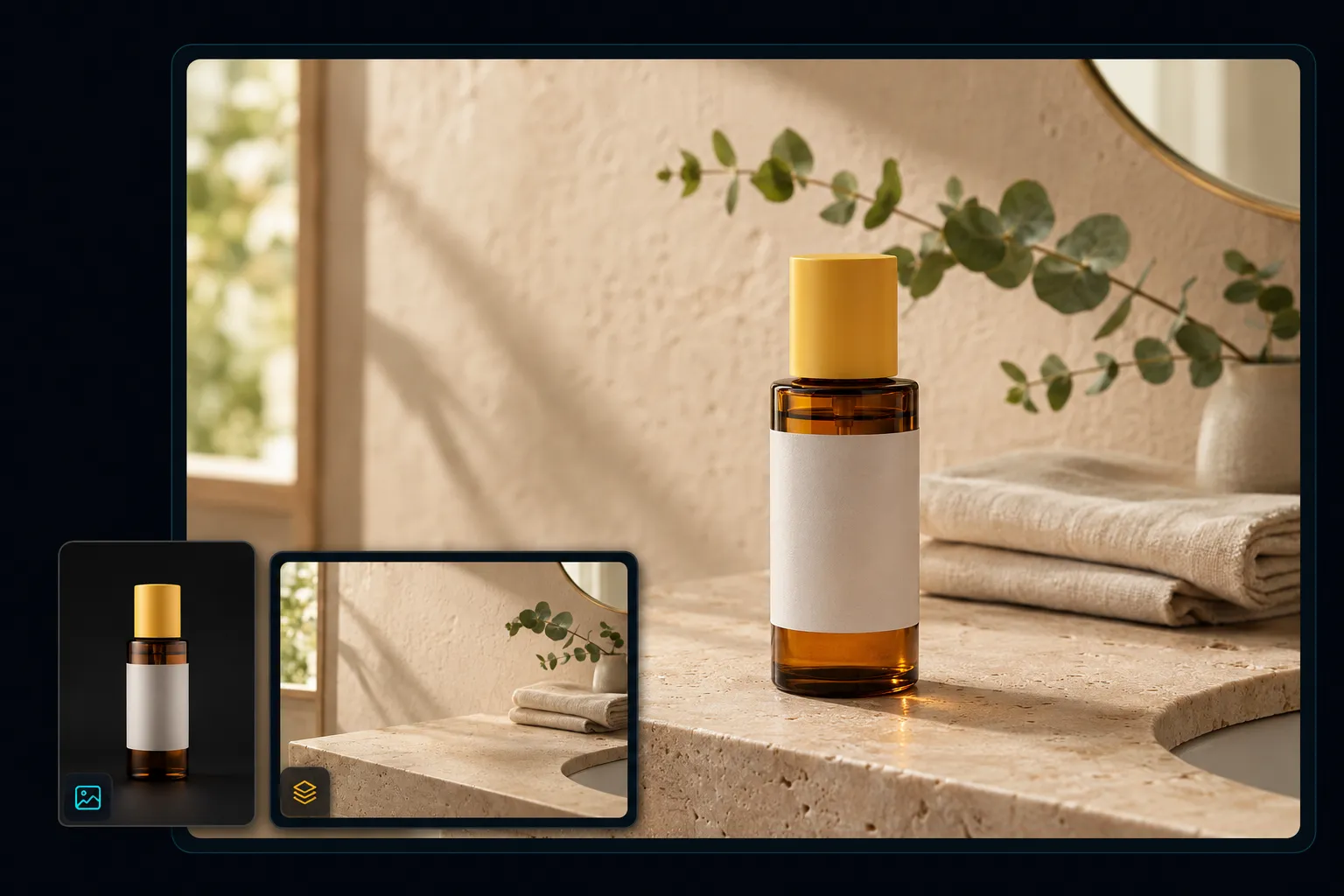
Combine a product with a lifestyle background while preserving its shape, logo, and colors.
Combined image preview
GPT Image 2 · auto
Recent combinations
MoreNo recent image combinations yet.
Prompt-Controlled AI Image Fusion
Combine two or more images into one coherent scene with AI. Upload up to four photos and guide composition, lighting, color, and perspective with a prompt.
AI Image Fusion Examples
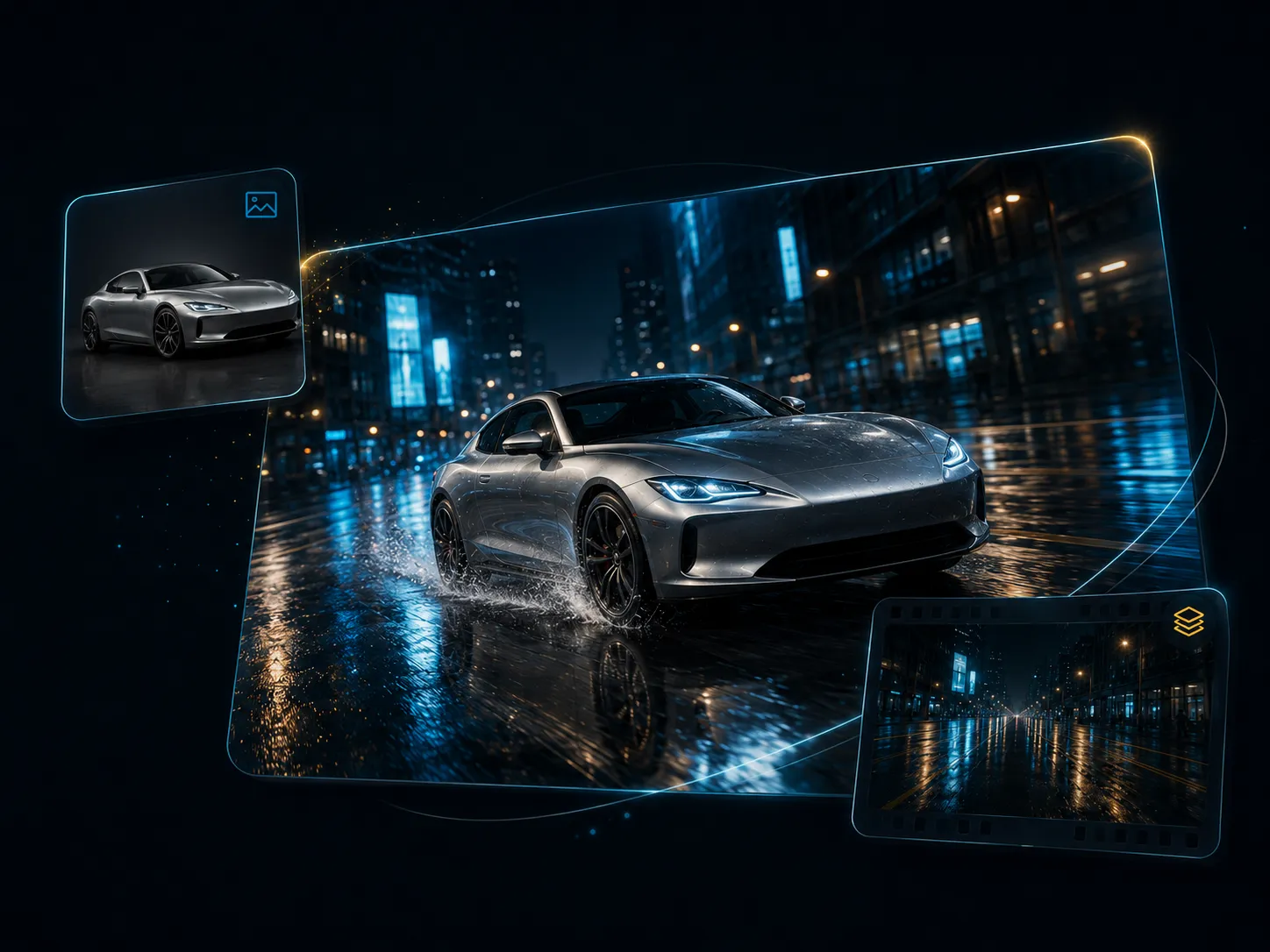
Use source images as subjects, scenes, objects, or style references and explain which details should remain recognizable.
Combine a product with a lifestyle background while preserving its shape, logo, and colors.
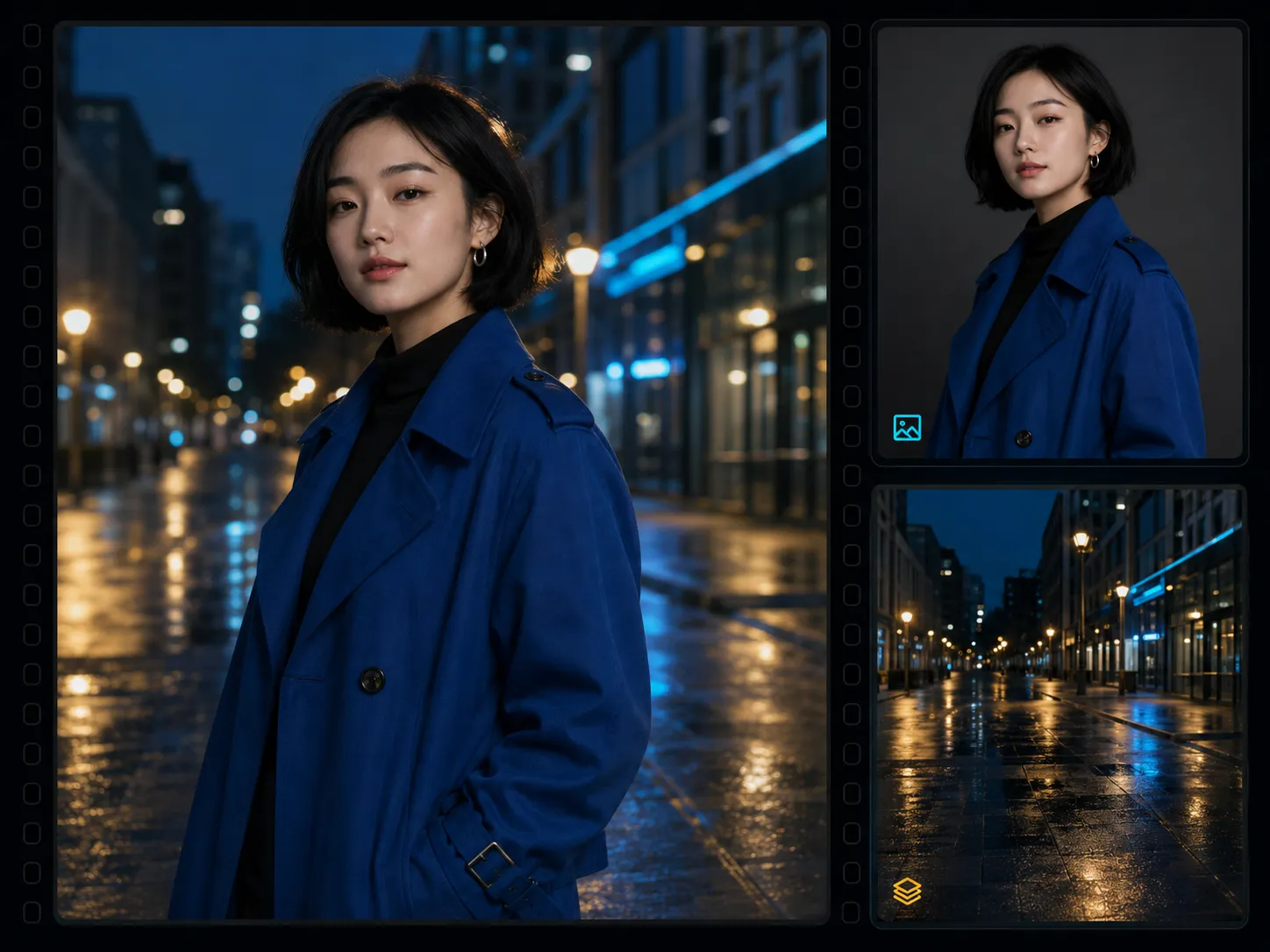
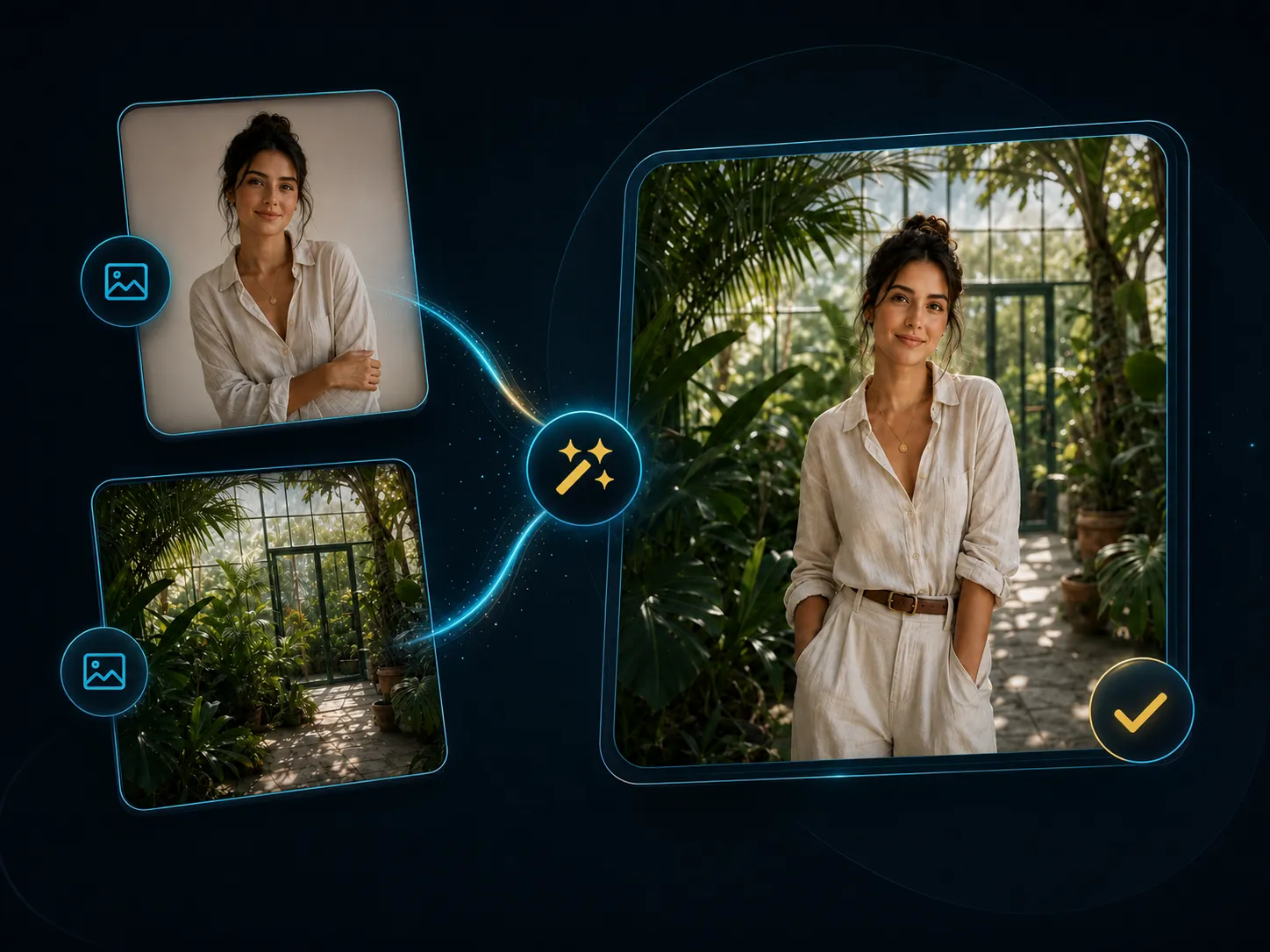
Preserve the person while matching the camera angle, lighting, depth, and reflections.
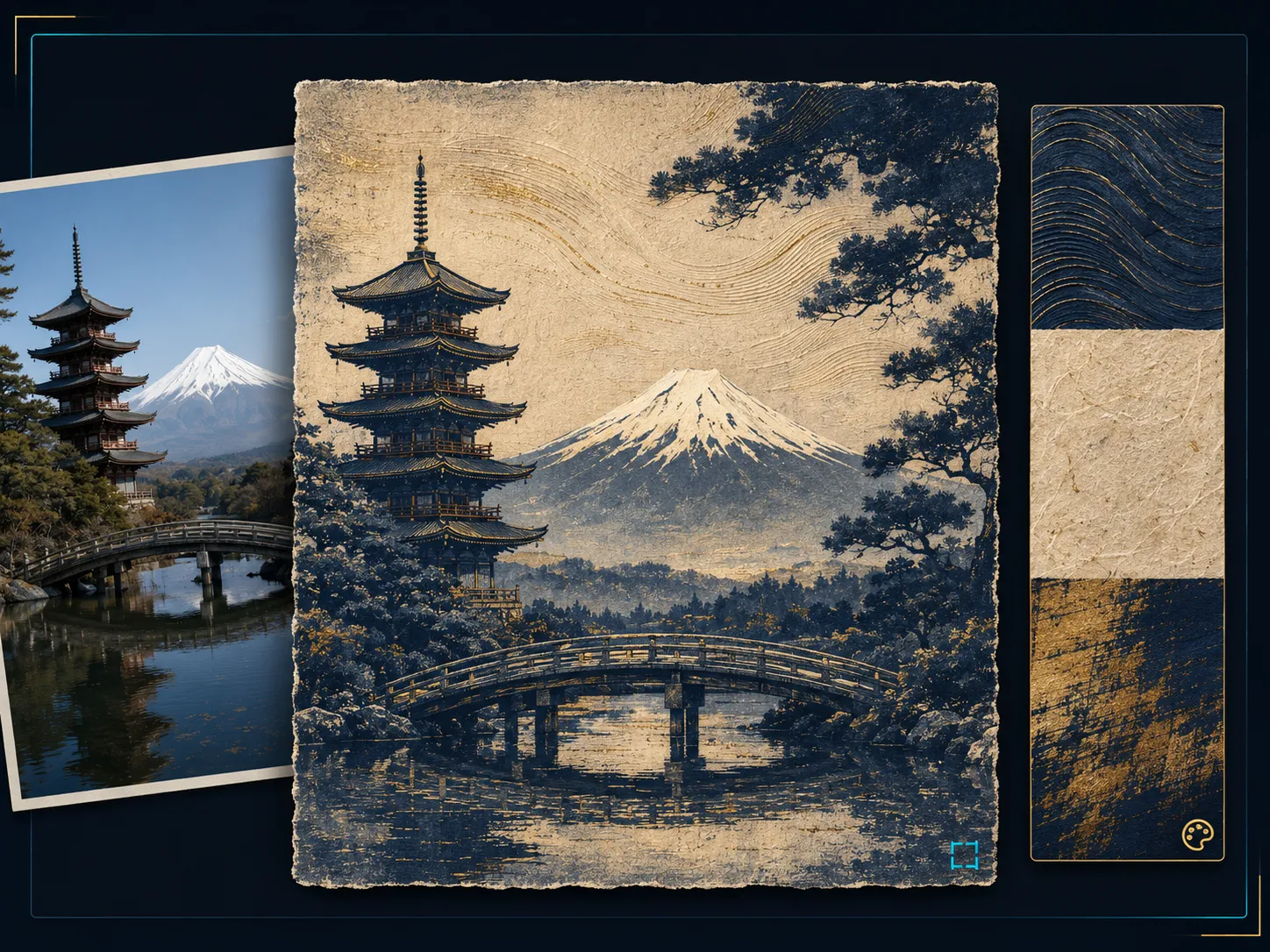
Use one image for composition and another for color, texture, or visual style.
Upload up to four reference images.
Choose Nano Banana or GPT Image 2.
Control lighting, color, shadows, angle, and perspective with a prompt.
Keep results in the shared YuzuTime history workflow.
A collage keeps images separate in a fixed layout. AI image fusion creates one new scene from multiple visual references and written instructions.
Use an AI combiner when subjects should interact naturally and lighting, depth, shadows, and perspective need to be adapted together.
Upload clear source images, explain the role of each one, then generate and refine the result.
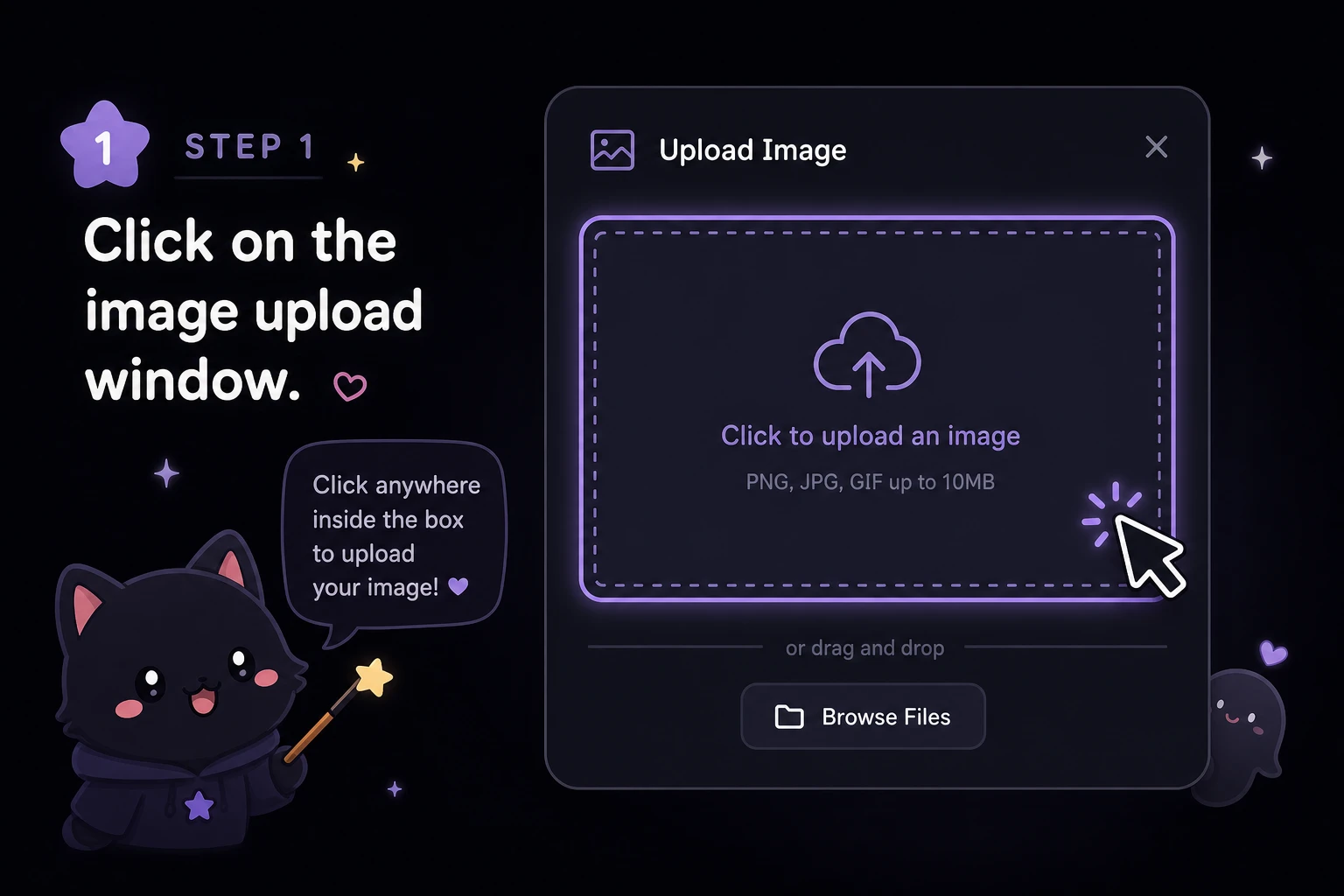
ステップ 1
Choose up to four PNG, JPG, or WEBP images.
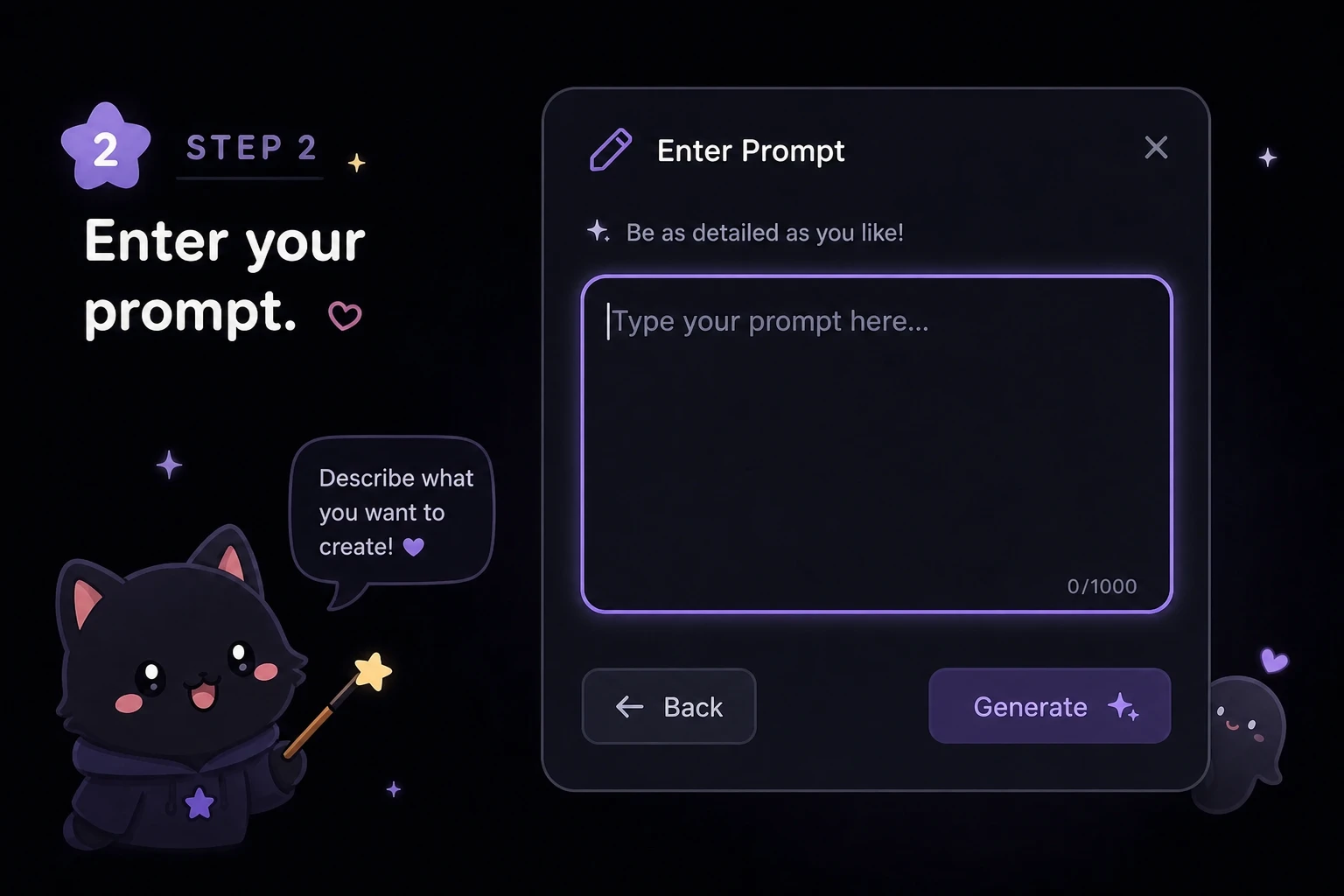
ステップ 2
Explain what to keep, placement, lighting, angle, colors, shadows, and perspective.
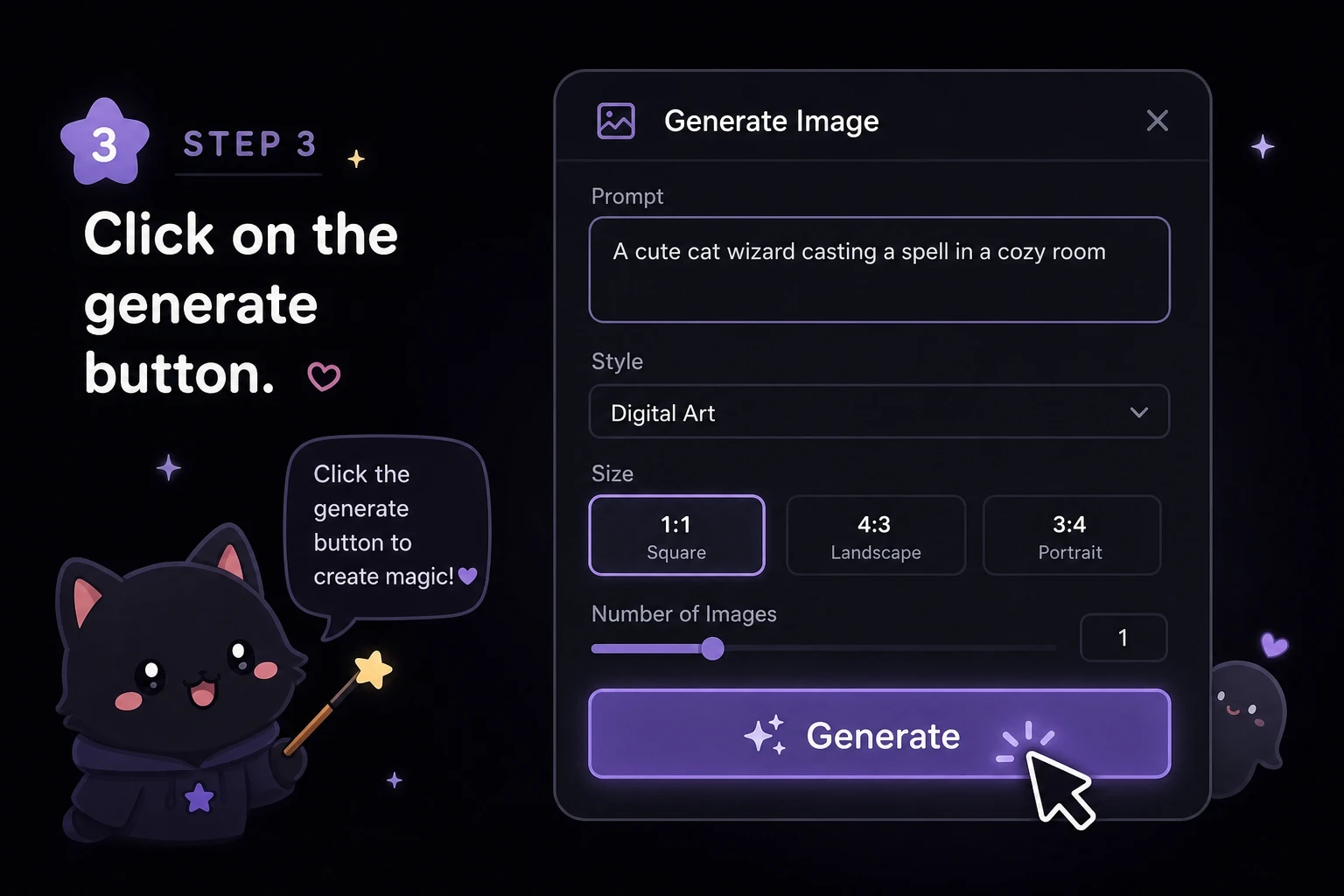
ステップ 3
Choose a model and output settings, generate the result, and refine the prompt when needed.
Upload source images and create a new composition with subjects, scenes, objects, and styles working together.
Open AI Image CombinerUpload up to four images you own or have permission to use. Output quality depends on source clarity, prompt detail, and model behavior.
Reviewed and updated by the YuzuTime AI product team. Last updated: July 2026.
"Place the product from Image 1 in the scene from Image 2 and match the lighting and shadows."
"Place the person from Image 1 in Image 2 while preserving facial features and clothing."
"Apply the color palette and texture from Image 2 while preserving Image 1 composition."
FAQ
It uses multiple source images and a prompt to generate one new, coherent composition.
Upload both images, explain the role of each one, and describe placement, lighting, and details to preserve.
Yes. The workbench accepts up to four source images per generation.
A collage keeps images separate, while AI fusion generates one new scene.
The uploader supports common web formats including JPG, PNG, and WEBP.
It can adapt those details, but results depend on the sources and prompt.
Use a clear reference and explicitly list the face, clothing, logo, shape, and colors to preserve.
Yes. The workbench runs in modern desktop and mobile browsers.