Upload one filtered photo
Use a PNG, JPG, or WebP file. The highest-quality original gives the model more useful color, texture, and lighting information than a compressed screenshot.
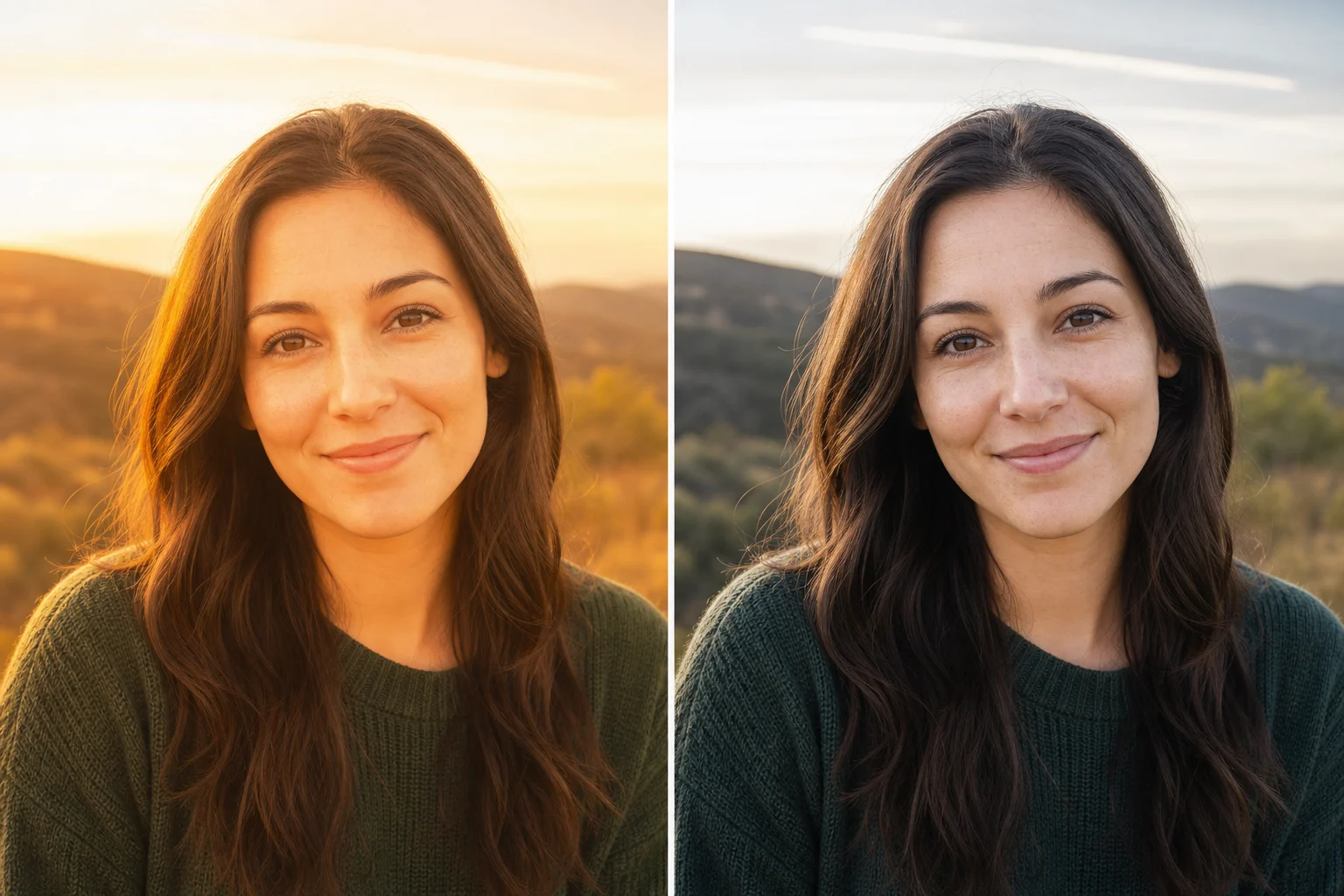
Filter-removal preview
YuzuTime V1 · default
Recent filter-removal edits
MoreYour recent filter-removal results will appear here.
AI filter reduction
Lost the clean version of a filtered photo? Upload the saved image and create a more natural-looking edit with balanced color, believable texture, and restrained contrast—without manual masks or Photoshop layers.
A saved filter can overwrite real pixels. AI can create a plausible naturalization, but it cannot guarantee recovery of the exact original photo.
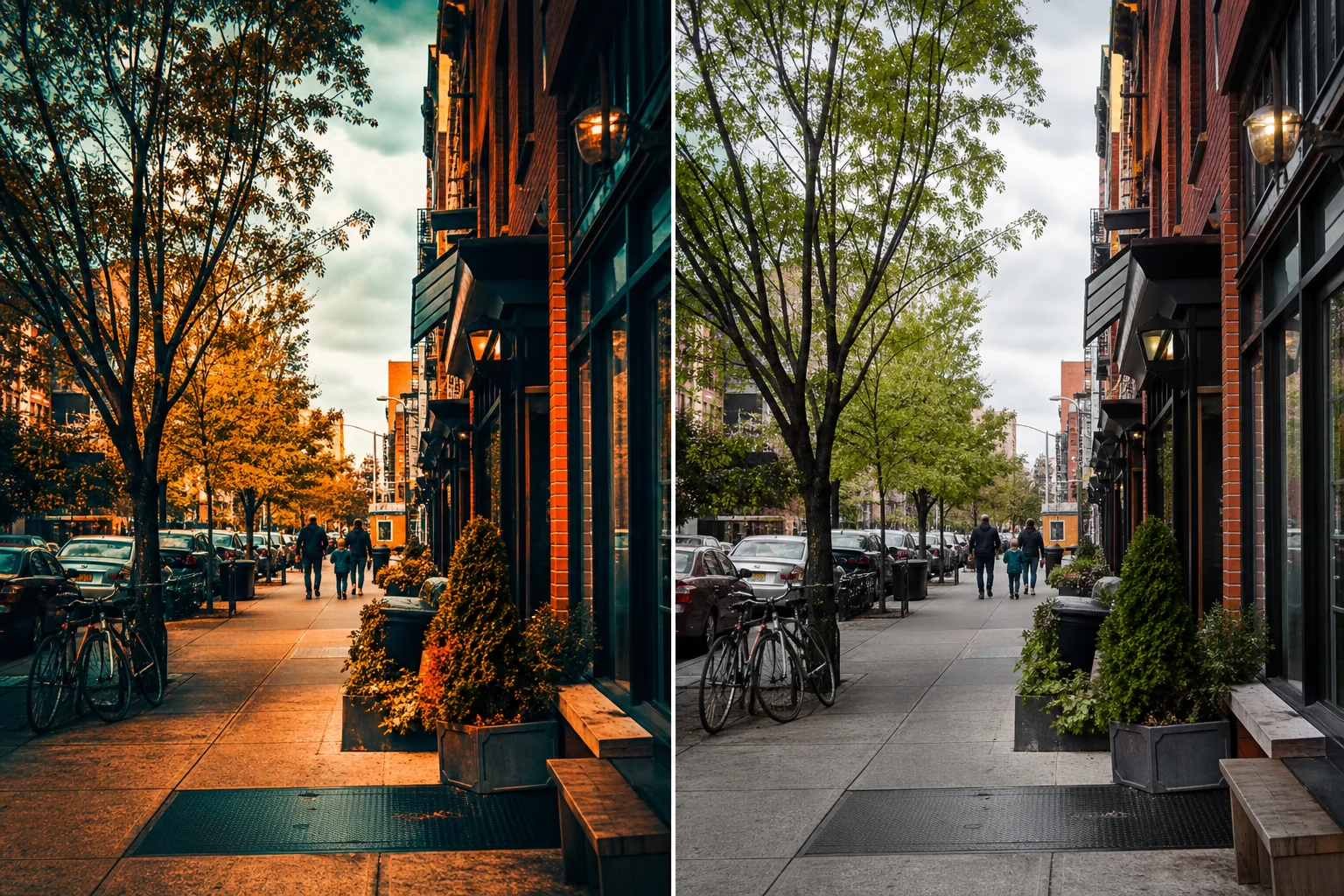
A natural baseline for your next edit
An AI filter remover analyzes the visible photo and generates a version with less stylized color, contrast, smoothing, or lighting. It can be useful when you only have a flattened social post, export, or screenshot and want a cleaner base for printing, sharing, or further editing.
This differs from clicking Undo in the original editing app. When the edit history and original pixels are gone, the model estimates believable tones and texture from image context. Treat the result as a new AI edit, not recovered evidence.
Three-step workflow
Use a PNG, JPG, or WebP file. The highest-quality original gives the model more useful color, texture, and lighting information than a compressed screenshot.
YuzuTime V1 is selected by default and uses the same photo-editor credit cost. You can also compare nano banana or GPT Image 2 with their existing size, quality, sign-in, and credit rules.
Select Remove filter, compare faces, objects, color, lighting, and background with the source, then download the version that best matches your goal.
Common filter-removal goals
Reduce yellow, orange, red, blue, green, or magenta tint and aim for a more neutral white balance.
Ask the model to bring back believable skin texture without reshaping the face or adding makeup.
Reduce faded blacks, sepia tone, heavy grain, or stylized contrast while keeping the scene recognizable.
Try photos saved from Snapchat, Instagram, or TikTok when the main issue is color, smoothing, or lighting. Strong AR masks and stickers are a separate reconstruction challenge.
AI can colorize a monochrome image, but the original colors are no longer present and the result is an estimate.
Tone down excess saturation, contrast, sharpening, glow, and artificial lighting for a cleaner editing baseline.
A color filter may discard channel detail; face effects may cover or reshape features; smoothing may erase pores and fine lines; black-and-white conversion removes color information. The selected model can generate a credible interpretation, but no tool can promise the exact hidden pixels.
Do not present the result as an original, unedited photo in identity checks, evidence, journalism, or other contexts where provenance matters.
Continue editing
FAQ
Research and product information reviewed August 7, 2026
AI can reduce color casts, beauty smoothing, vintage grading, contrast changes, and some visible effects. A flattened file no longer contains every original pixel, so the result is a plausible natural-looking edit rather than an exact recovery of the original photo.
Upload one PNG, JPG, or WebP photo, keep YuzuTime V1 selected or choose nano banana or GPT Image 2, review the size and credit cost, then select Remove filter. Preview the result before downloading it.
The editor can attempt to reduce color filters, beauty effects, and stylized lighting from photos saved from social platforms. It is not affiliated with those platforms, and strong AR masks, stickers, or face reshaping may require a more specific edit.
No. Once a filter has overwritten color, texture, or facial detail in a flattened image, an editor cannot read the lost pixels. AI estimates a believable alternative from the visible image context.
It can attempt to neutralize color casts and stylized grading. Black-and-white photos are a harder colorization task because the original colors are absent, so generated colors should be treated as estimates.
The fixed instruction asks the model to preserve identity, pose, clothing, objects, framing, and background. Generative edits can still alter details, so compare the result carefully with the source.
YuzuTime V1 follows the same photo-editor credit policy, and the other models keep their existing costs. The exact cost is displayed beside the selected model and quality before generation.
No native app or manual layer editing is required. The tool runs in a supported desktop or mobile browser.
Use the highest-resolution original available, with clear subjects, balanced lighting, and minimal compression. Avoid screenshots when the original file is available.
Only upload images you own or have permission to edit. Keep the original file, and disclose material AI edits when the result could mislead viewers.
Upload only photos you own or have permission to edit. Images are sent to YuzuTime and its processing providers to complete the requested edit. Review the current Privacy Policy and Terms of Service before uploading sensitive images.