YuzuTime AI

Transparent background maker demo image

Preview

Transparent cutout

Recent history

More

No recent edits yet.

AI transparent PNG workspace

Transparent Background Maker

Make any image background transparent online. Upload your photo, let AI remove the background automatically, and download a clean transparent PNG in seconds.

Transparent background maker showing a clean PNG cutout

Use cases

Clean Cutouts for Everyday Image Work

A transparent PNG maker is useful when product listings, logos, profile images, marketing assets, or reusable design elements need a clean cutout without extra setup.

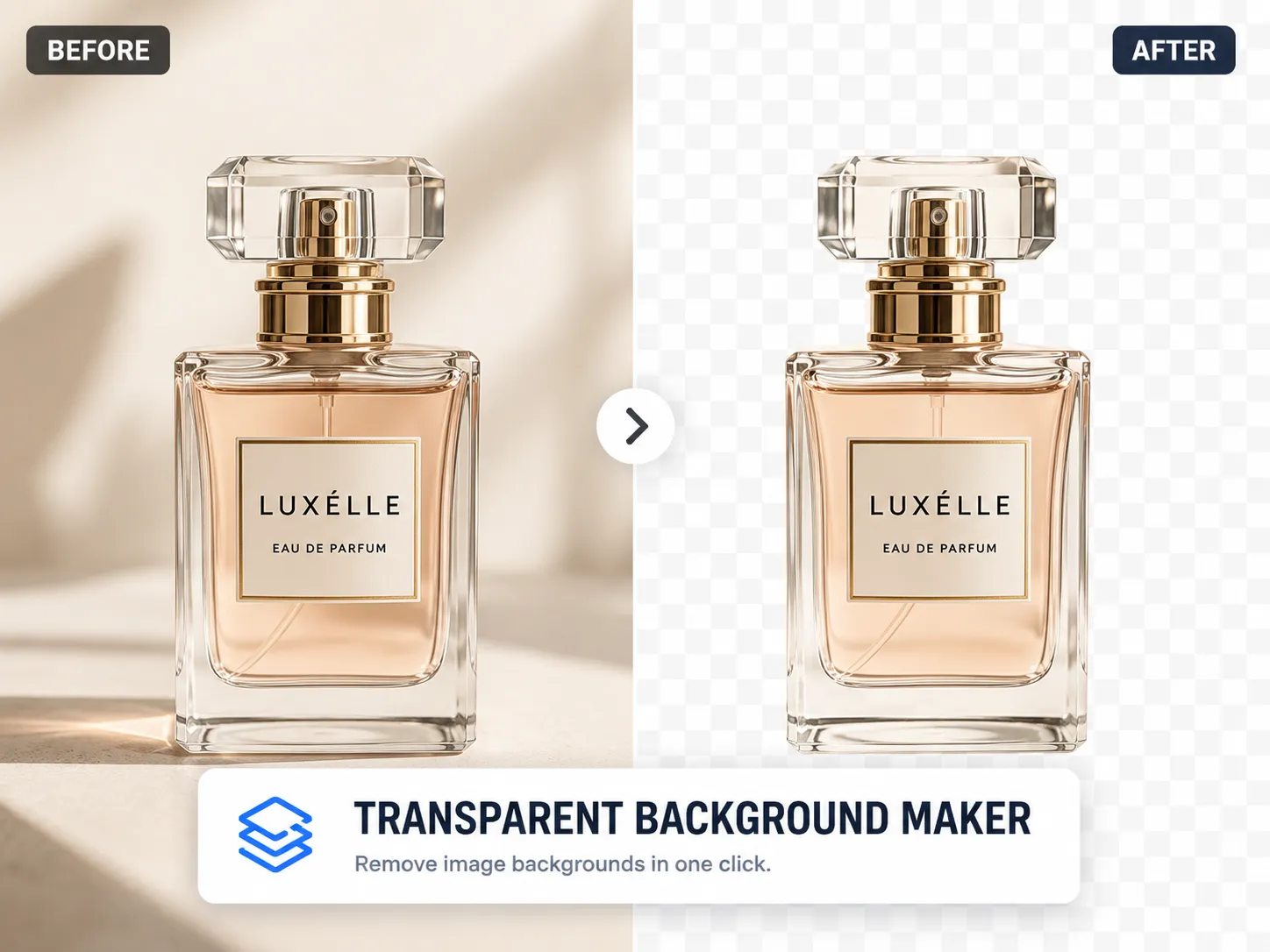
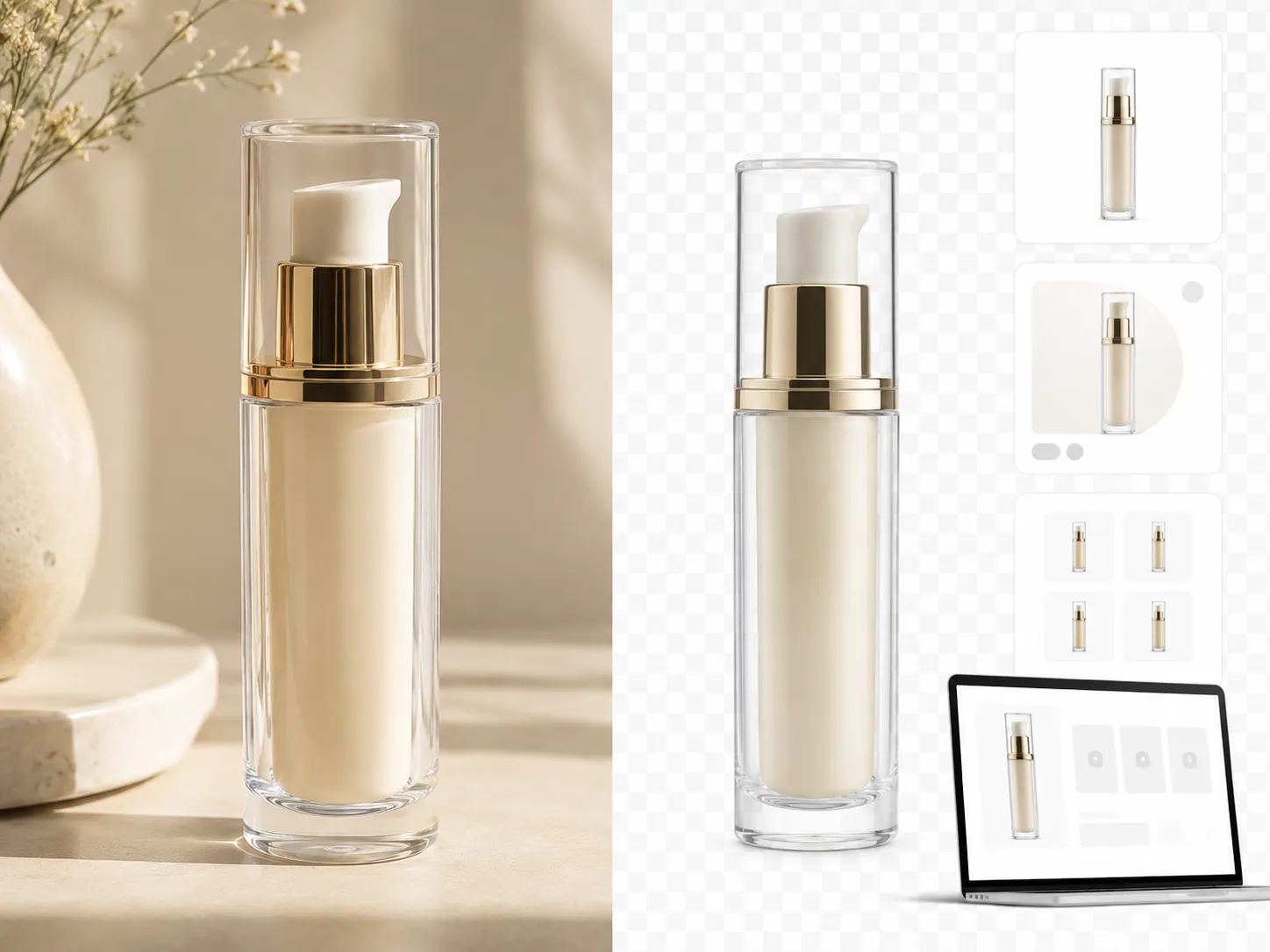
Product photo with transparent background created by YuzuTime AI

Product photos and ecommerce listings

Make image background transparent before you place a product shot on a store page, marketplace thumbnail, ad, or clean white layout. The transparent PNG gives you a reusable cutout without opening Photoshop for a simple background job.
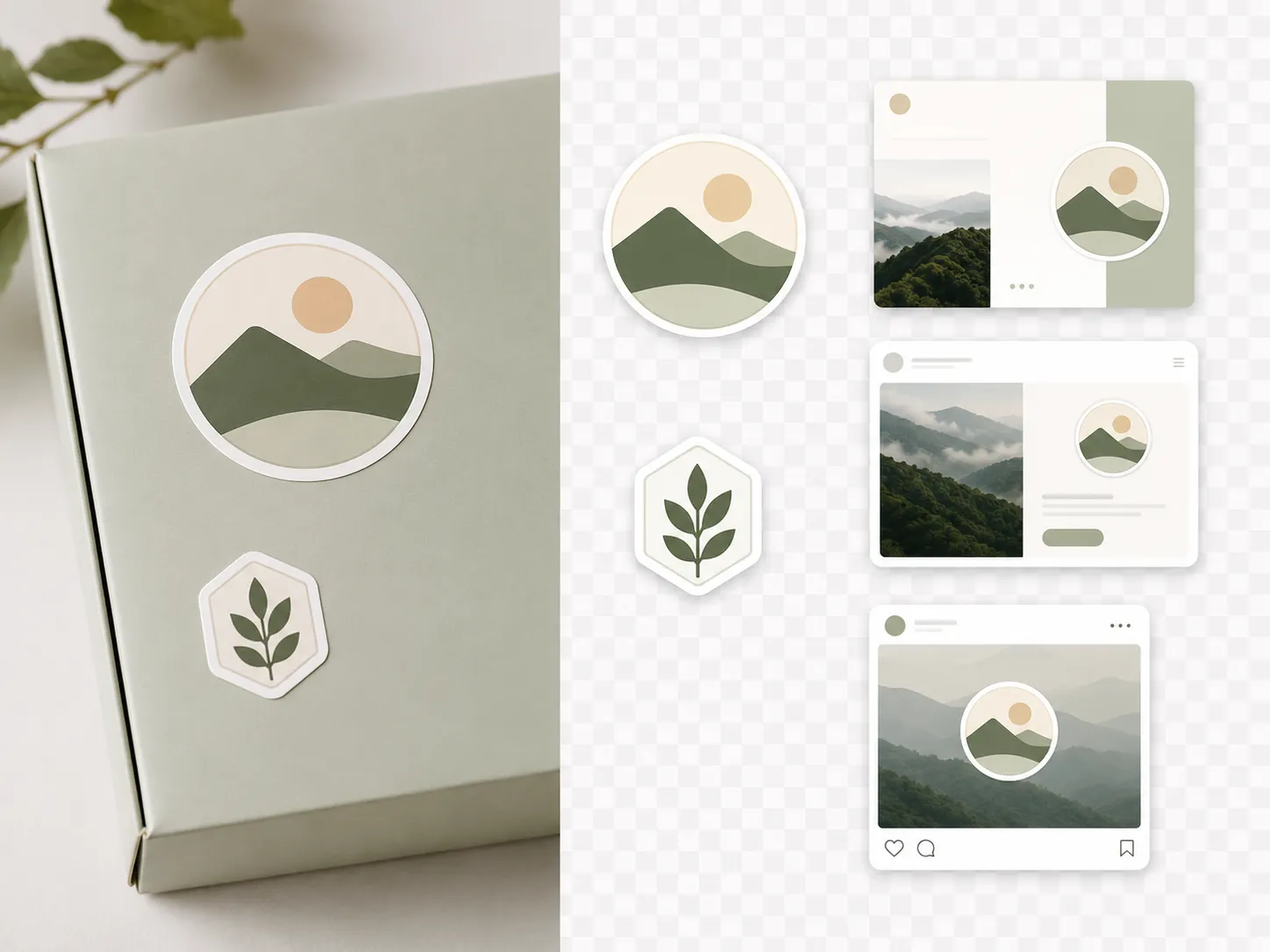
Logo with transparent PNG background

Logos, stickers, and brand assets

Upload a logo, badge, sticker, or icon and export it as a transparent PNG for slides, websites, social posts, or design systems. A larger source file with clear contrast usually gives cleaner edges around letters and small details.

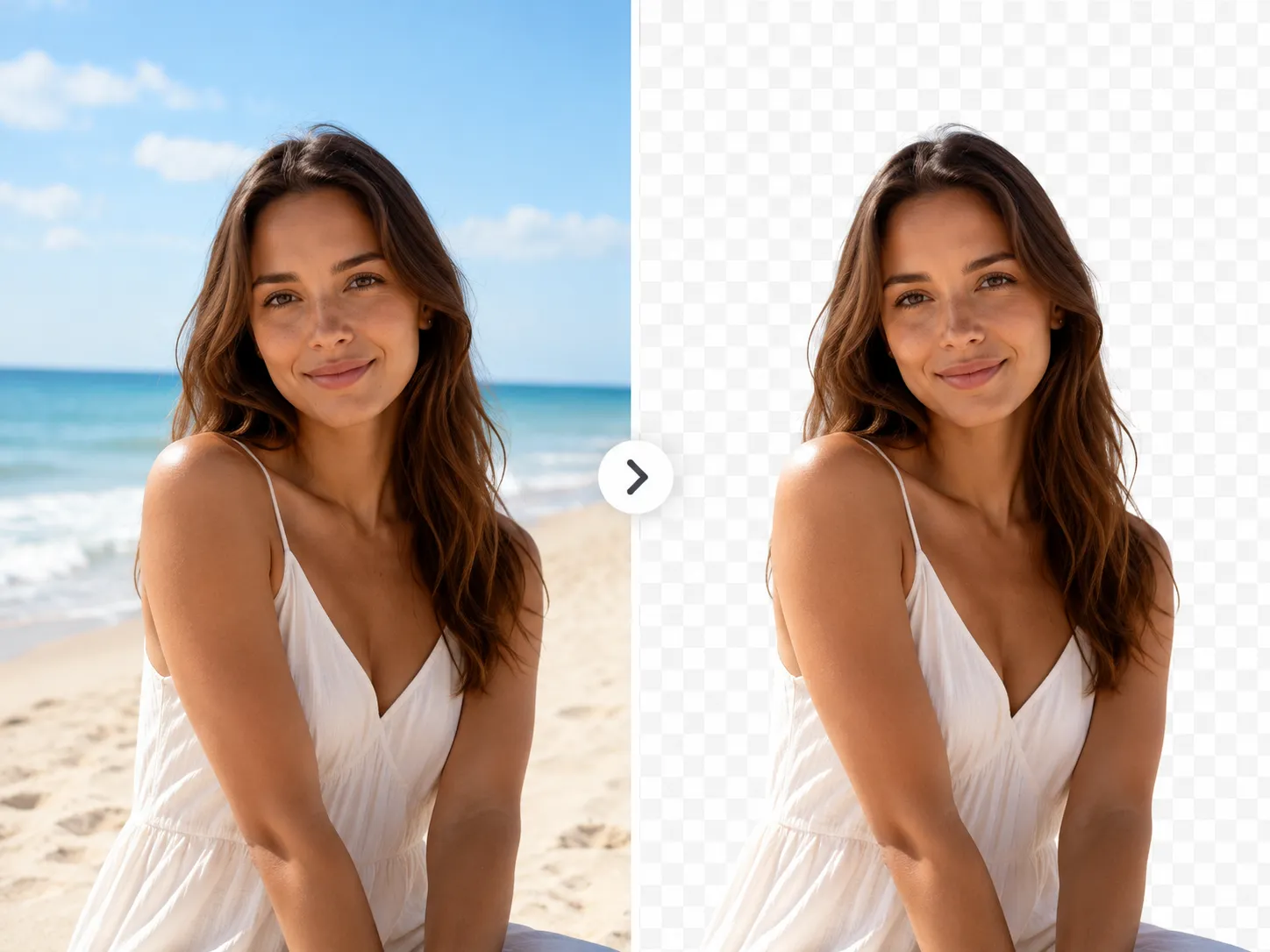
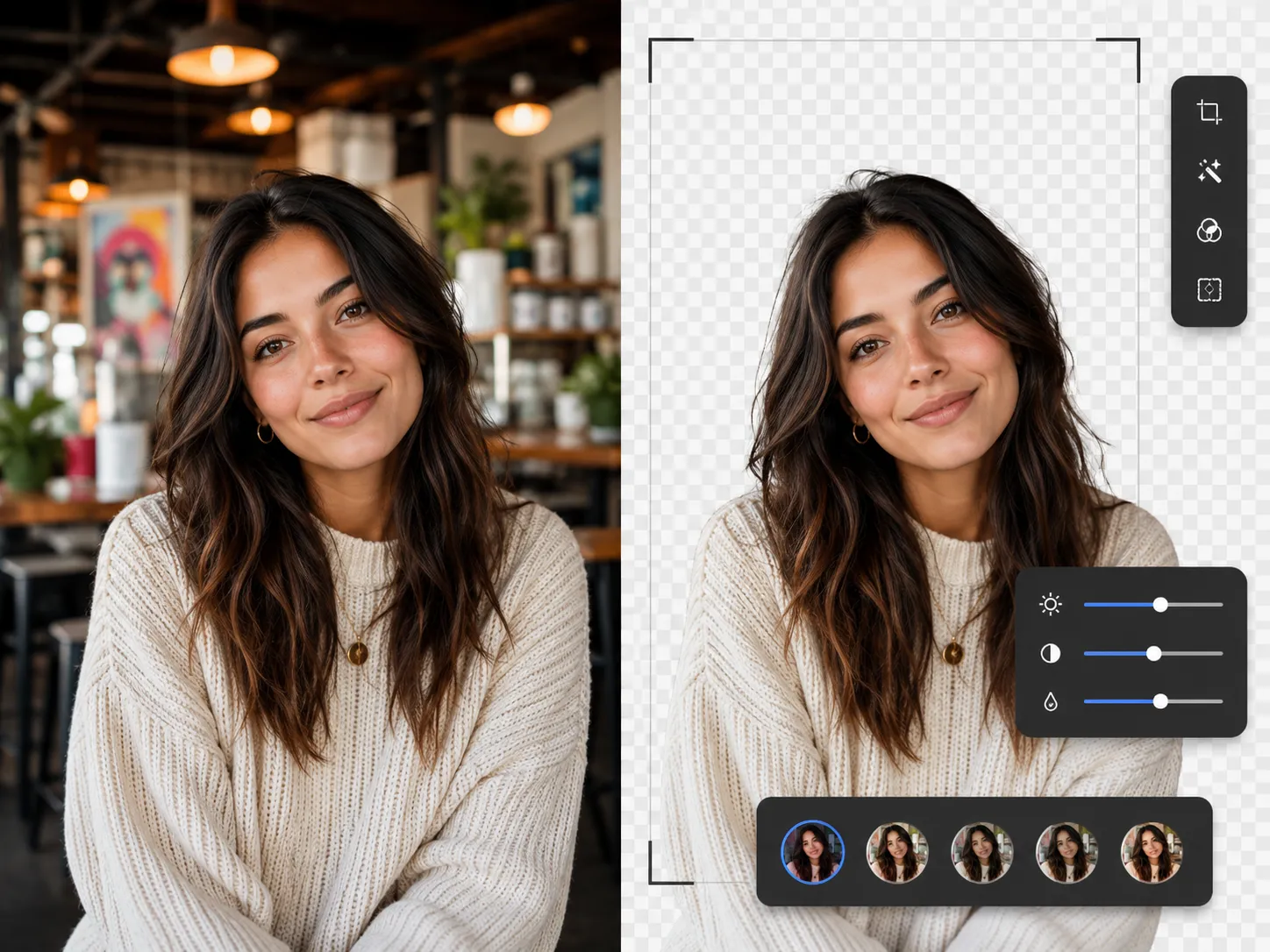
Portrait cutout for social media with transparent background

Portraits and social media graphics

Remove busy backgrounds from portraits, avatars, and creator images. If the cutout still needs lighting fixes, object cleanup, or prompt-based edits, open it in the AI Photo Editor after the background is gone.

Why use YuzuTime AI Transparent Background Maker?

The AI cutout finds the main subject and removes the background without hand-drawn masks.

Transparent PNG export keeps the alpha channel, so the image can sit on websites, slides, stores, and social graphics.

The tool runs in the browser, so you can make a background transparent without installing Photoshop, Canva, GIMP, or desktop plugins.

Signed-in users can keep credits, history, downloads, and related YuzuTime AI editing tools in the same image workspace.

What Is a Transparent Background Maker?

A transparent background maker removes the visible background from an image and saves the subject as a transparent PNG. The transparent area is stored in the alpha channel, so the cutout can sit cleanly on a website, presentation, product page, or new design background.

People usually search for tools like this with phrases such as make background transparent, make image background transparent, free transparent background maker, and transparent PNG maker. The workflow is simple: upload one JPG, JPEG, PNG, or WebP image, remove the background automatically, then download the result or keep editing online.

How to Make a Background Transparent

Upload a clear image, remove the background automatically, then download the finished cutout as a transparent PNG.

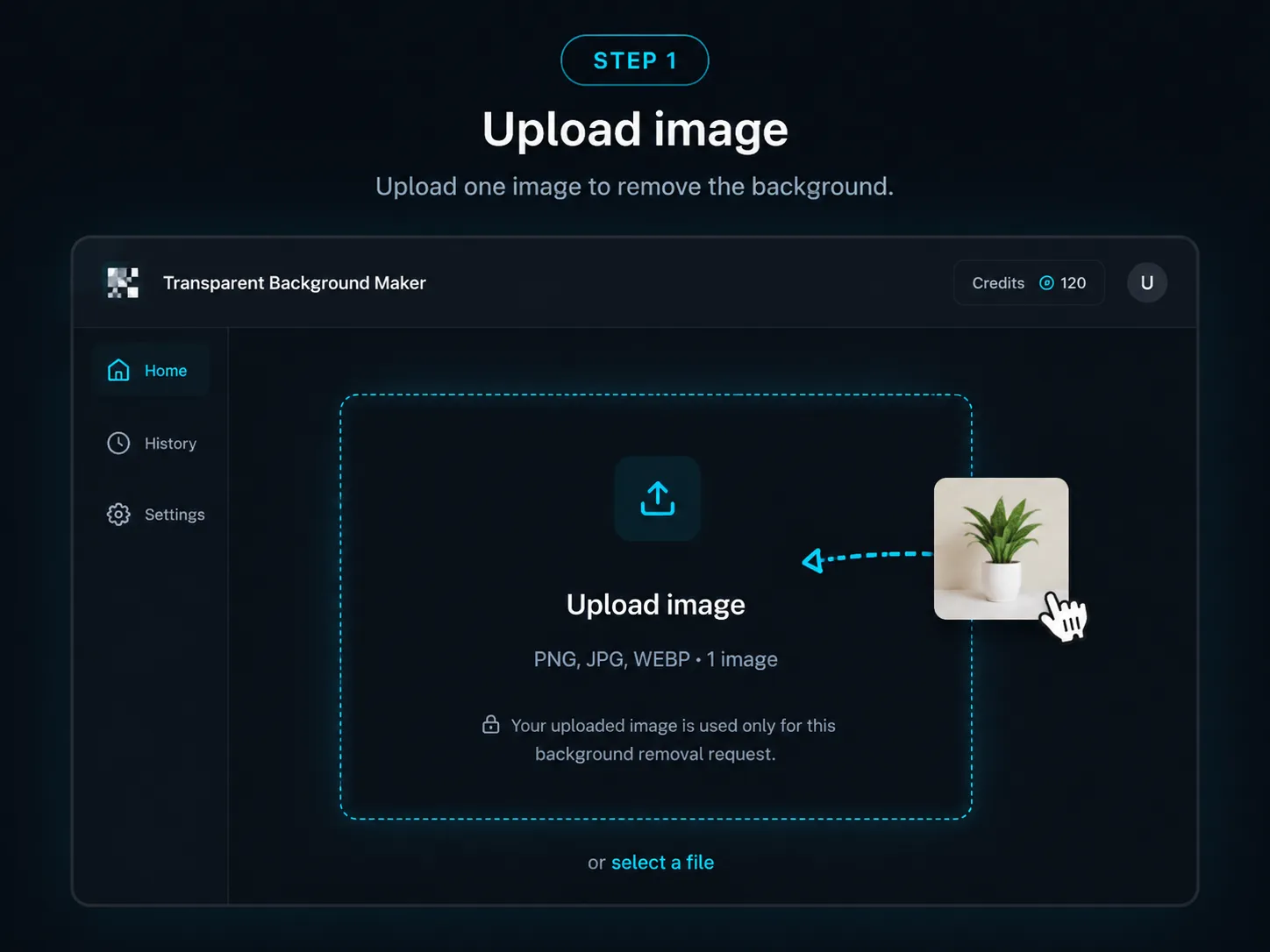
Image uploaded to transparent background maker

Step 1

Upload your image

Choose a JPG, JPEG, PNG, or WebP file with a clear subject. Product photos, portraits, logos, pets, clothing, and social graphics tend to work best when the subject is centered and well lit.

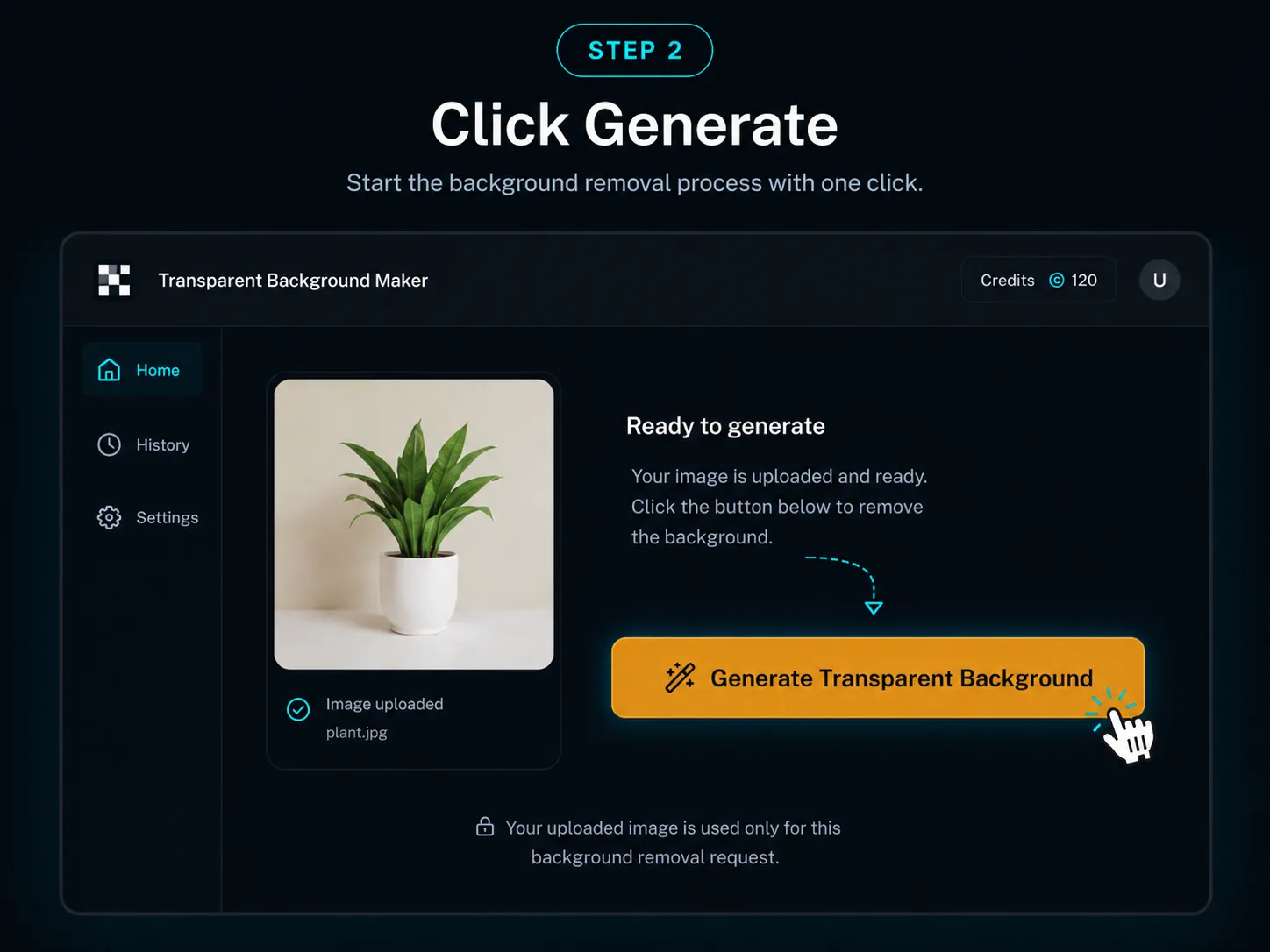
AI background removal preview with transparent checkerboard

Step 2

Remove the background automatically

YuzuTime AI detects the main subject and clears the surrounding background. Higher-resolution images with good contrast between subject and background usually produce cleaner edges.

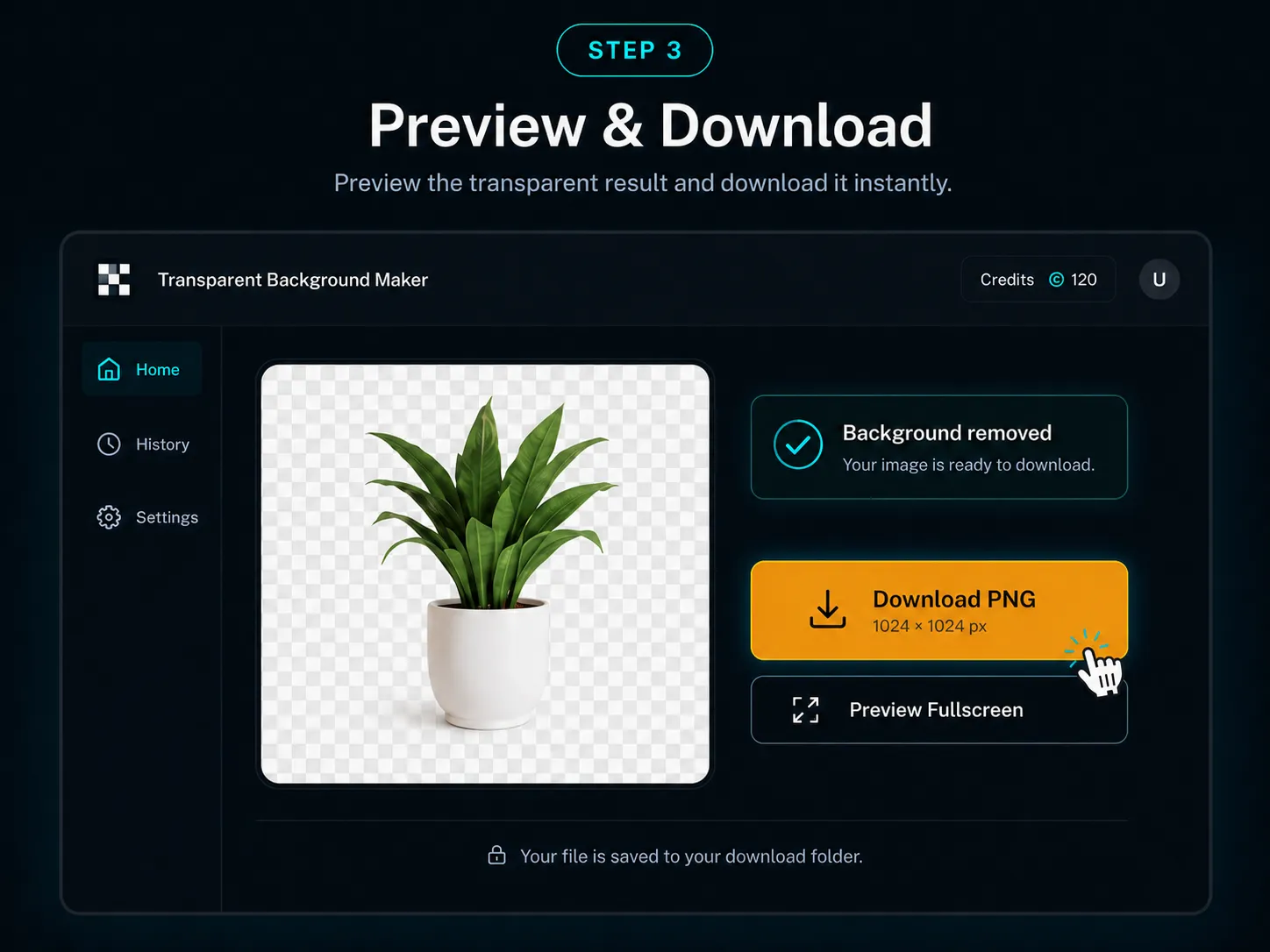
Transparent PNG maker download result

Step 3

Download a transparent PNG

Save the cutout as a transparent PNG, use it in another design tool, or keep editing with YuzuTime AI if the image needs extra retouching.

Create a Transparent PNG

Open the transparent background maker, upload one image, and create a clean cutout for ecommerce, logos, profile images, presentations, or marketing assets.

Make Background Transparent

Privacy, Formats, and Output Limits

YuzuTime AI supports JPG, JPEG, PNG, and WebP uploads for this workflow. Uploaded images are processed for your background removal request and are not used for model training. Use only images you own or have permission to edit. Fine details such as hair, glass, transparent objects, motion blur, and low-contrast edges may need extra refinement.

Reviewed and updated by the YuzuTime AI product team. Last updated: July 2026.

Quality Tips

"Use a high-resolution source where the subject is not cropped tightly against the edge."

Input tip

"Choose photos with clear contrast between the subject and background when hair, clothing, or product edges need to stay clean."

Cutout tip

"For logos, upload the largest available file and download as PNG so the background stays transparent in design tools."

Logo tip

FAQ

Frequently Asked Questions About Transparent Backgrounds

How do I make a background transparent?

Upload your image to YuzuTime AI, let the AI remove the background automatically, then download the result as a transparent PNG. PNG keeps the transparent area, so you can place the subject on another background.

Can I make an image background transparent for free?

You can try the transparent background maker with the free credits available on your account. More generations use the same YuzuTime AI credit system shown on the pricing and account pages.

What file formats are supported?

The upload flow supports common web image formats: JPG, JPEG, PNG, and WebP. The final cutout is meant for transparent PNG export because PNG supports the alpha channel needed for transparency.

How do I make a logo background transparent?

Upload the logo image and generate a cutout, then download it as a PNG with transparency. Use a high-resolution logo with strong contrast for cleaner edges around letters, symbols, and small details.

How do I make a white background transparent?

Upload the image with the white background and let the AI remove the background around the subject. This tool is built for subject cutouts rather than exact color picking, so images with clear subject edges work best.

Will the transparent image have a watermark?

YuzuTime AI uses the same account, credit, and history workflow as the other image tools. Check your current account and credit state before starting high-volume work.

Can I use the transparent PNG for commercial projects?

You are responsible for using images you own or have permission to edit. Commercial use depends on your rights to the source image, the final result, and the applicable YuzuTime AI terms.

Why does my cutout look imperfect around hair or glass?

Hair, glass, transparent objects, motion blur, shadows, and low-contrast edges are harder for automatic background removal. Try a sharper, higher-resolution image with better lighting, then continue with AI photo editing if the edge still needs work.